
How to Limit Quantity Per Customer on Shopify – Complete Guide
Ever had one customer buy out your entire flash sale in minutes? Or watched resellers grab all your limited items just to flip them for profit? You’re not alone.
The problem is, Shopify doesn’t offer a native way to set a quantity limit per customer. There’s no simple toggle that says “limit 2 per person.” But there are solid workarounds – from built-in settings to dedicated apps that handle this automatically. This guide covers exactly how to set up Shopify limit quantity per customer, whether you’re running a flash sale, a limited drop, or just want to keep things fair for everyone.
What Is Shopify Limit Quantity per Customer?
Shopify limit quantity per customer means setting a cap on how many units a single shopper can buy – not just in one order, but across all their purchases. Even if someone tries to check out again in a new cart, the system blocks them once they’ve hit the limit.
This is different from a per-order limit. A per-order limit applies only to a single cart. A per-customer limit tracks across every order that shopper places – making it the stronger option for limited drops, exclusive releases, or anything where fairness matters.
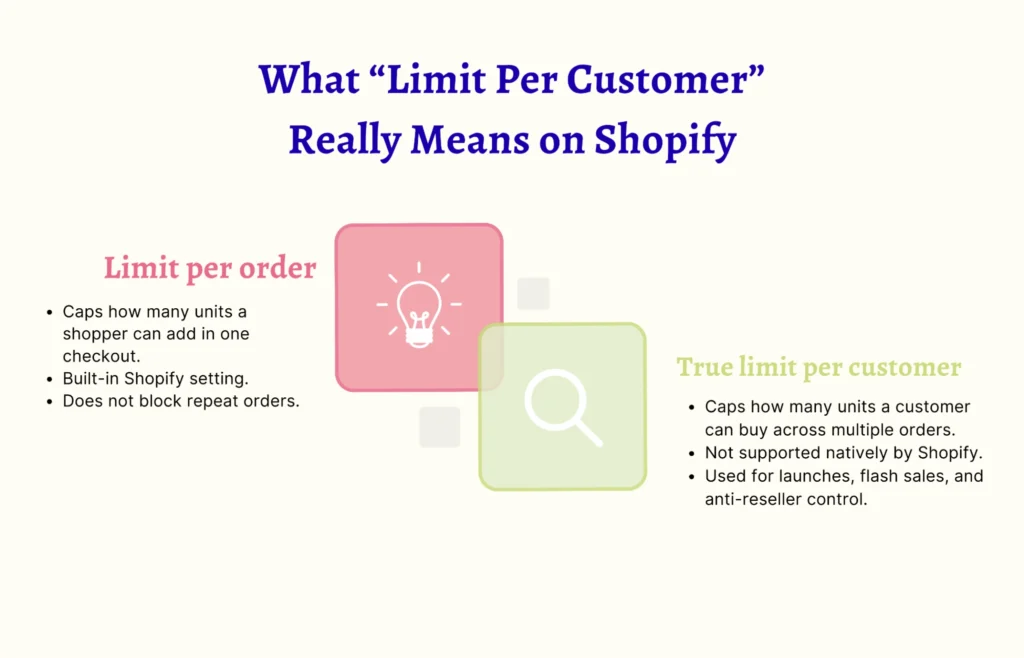
Since Shopify doesn’t offer this natively, most merchants use a third-party app to enforce it.
Quick example: You’re launching 200 limited-edition hoodies. You want each customer to buy no more than one. A per-customer limit blocks anyone from placing a second order – protecting your stock and giving more shoppers a fair shot.
Why You Need Quantity Limits on Your Store
Quantity limits aren’t just about stopping resellers. There are real business reasons to set them up – here’s when it makes the most sense.
Prevent Stockouts
When one customer can buy 20 units in a single order, your inventory disappears before most people even get a chance to shop. Setting a limit keeps stock available longer and gives you more control over how quickly products move.
Promote Scarcity and Urgency
“Limited to 2 per customer” is a signal. It tells shoppers the product is in demand and they shouldn’t wait. This creates genuine urgency without any extra marketing copy – the limit does the work for you.
Reach More Customers With Flash Sales
You planned that 30% off promotion to attract new customers – not to give one person a bulk discount. Quantity limits spread your deals across more buyers, so your sale actually does what it’s supposed to do.
Meet Legal or Supplier Restrictions
Some products legally require purchase limits. Others come with wholesale agreements that cap how many units you can sell to a single buyer. Quantity limits help you stay compliant automatically, without manually reviewing every order.
When Should You Set a Quantity Limit?
Quantity limits aren’t just for stores with supply issues. Here’s when they make the most sense:
- Limited product drops – Prevent bots and scalpers from clearing your inventory in seconds during a high-demand release.
- Promotional or discounted items – Flash sales attract bulk buyers. A limit ensures your discounts reach more customers instead of one person getting everything.
- Subscription or recurring products – Cap how many units each subscriber can order per cycle to keep fulfillment predictable.
- Restocked or trending items – When a product comes back in stock, a limit gives more customers access instead of the fastest clicker getting them all.
How To Add Shopify Limit Quantity Per Customer
Shopify doesn’t have a built-in toggle for this. There’s no simple setting that says “limit 2 per customer.” Here are the two ways to make it work.
Method 1: Do It Manually
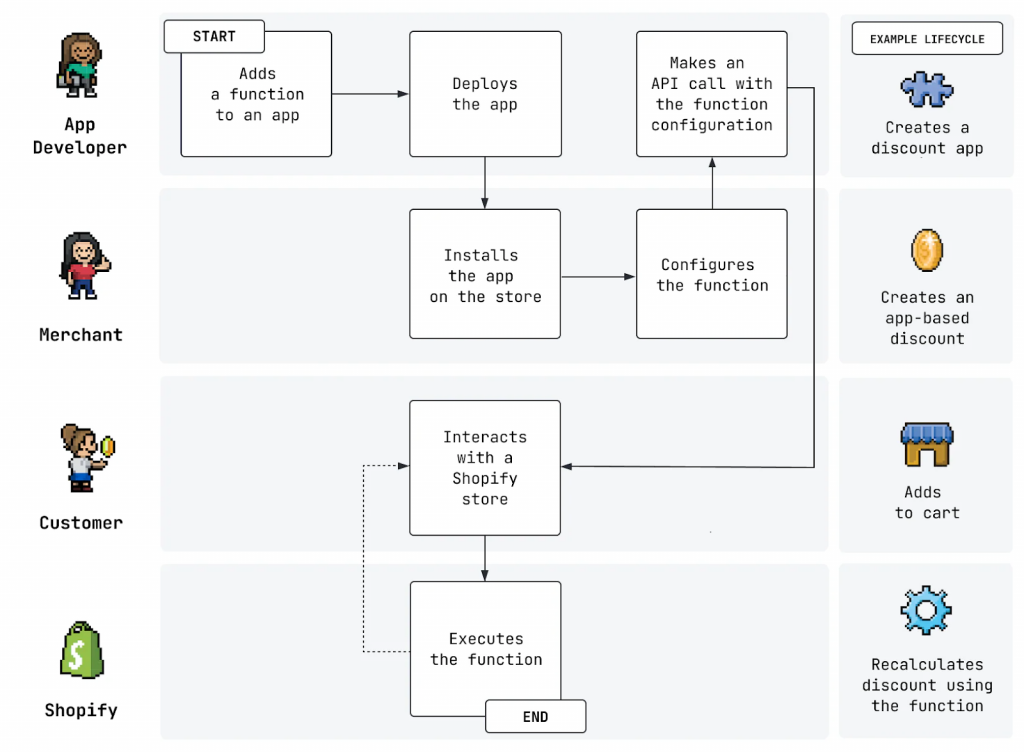
If you’re on Shopify Plus, you can use Shopify Functions to enforce quantity limits at checkout. This gives you precise control – but it requires coding knowledge and technical setup.
For stores not on Plus, the manual options are limited. You can:
- Use discount code limits – restrict a code to one use per customer. But this doesn’t stop someone from buying 10 units with that one code, or placing another order without a code at all.
- Watch orders manually – review incoming orders and cancel anything that exceeds your limit. This works at very low volume, but it doesn’t scale and causes confusion for customers whose orders get canceled after the fact.
- Modify your theme – hide quantity selectors or add warning messages through code. This only affects a single session and won’t track purchases across multiple orders.
⚠️ The honest reality: manual methods are workarounds, not real solutions. They break down as soon as your store gets busy.
Method 2: Use a Third-Party App
Manual methods only go so far. Once your store gets busy – during a flash sale, a limited drop, or a high-traffic promotion – watching orders by hand breaks down fast. By the time you spot a bulk order and cancel it, the damage is already done. The customer is confused, your inventory is disrupted, and your support team is dealing with the fallout.
The deeper problem is that Shopify’s native tools weren’t built for this. Discount code limits don’t stop someone from placing multiple orders. Theme modifications only affect a single session. There’s no way to track what a customer has bought across all their orders without a dedicated solution.
And the longer you go without a real system in place, the more you lose – to resellers flipping your limited items, to one buyer taking advantage of your promotions, to stock running out before your genuine customers even get a chance.
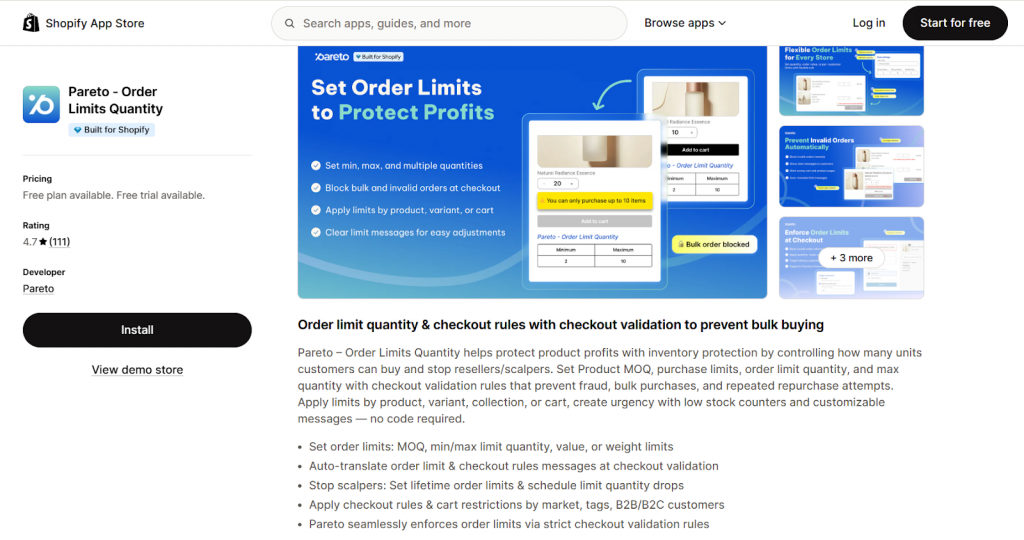
Pareto – Order Limits Quantity is built specifically for this problem.
It lets you set flexible purchase limits – minimum order quantities, maximum per customer, or restrictions based on order value and weight – all enforced directly at checkout. No coding required, no workarounds, no gaps.
Here’s what makes it stand out:
- Strict checkout validation – limits are enforced at the point of purchase, not after the fact. Customers can’t bypass rules by opening a new cart or placing a second order.
- Flexible rule setup – configure limits by product, variant, collection, or entire cart. Segment rules by market, customer tags, or B2B vs B2C groups.
- Lifetime order limits – track what a customer has bought across all their orders, not just the current session. True per-customer control.
- Scheduled limit changes – set limits to activate or expire automatically. Useful for flash sales, seasonal promotions, or limited drops with a fixed window.
- Low stock counters – show real-time stock levels to create urgency and encourage faster decisions.
- Customizable messages with auto-translation – when a customer hits a limit, they see a clear, friendly message in their language explaining why.
Whether you’re protecting a limited product drop, managing a promotional sale, or preventing resellers from clearing your inventory – Pareto handles it automatically, so you don’t have to.
Best Practices for Setting Quantity Limits
Setting up the rules is the easy part. Getting it right takes a little more thought. Here’s what experienced merchants do to make quantity limits work without creating friction for genuine shoppers.
Start with a limit that reflects real demand
If your product normally sells in singles, a limit of 1 or 2 makes sense. If it’s commonly bought in bulk (gift sets, consumables, wholesale), set your limit higher. A limit that’s too low frustrates real customers; one that’s too high doesn’t stop the problem.
Communicate limits clearly before checkout
Don’t surprise customers at the final step. Display the limit on the product page – something like “Maximum 2 per customer” near the quantity selector. Shoppers who know the rule upfront are less likely to feel blocked and more likely to trust your store.
Use different limits for different products
Not every product needs the same rule. A limited-edition item might warrant a limit of 1. A popular everyday item might cap at 5. Most apps, including Pareto Order Limits, let you set rules per product, variant, or collection – so you’re not stuck with a one-size-fits-all approach.
Pair limits with a low stock counter
When customers see “Only 8 left” alongside a “Max 2 per customer” rule, it creates real urgency – without any artificial scarcity messaging. The combination drives faster decisions from genuine buyers while naturally discouraging bulk attempts.
Test your limits before a big sale or drop
Place a test order yourself. Try to exceed the limit from the same account, then from a different device. Check the cart drawer, the Buy Now button, and express checkout. If any path bypasses the rule, fix it before launch – not after.
Review your limits after each major sale
What worked for a flash sale might be too restrictive for regular inventory. Check how often customers hit the limit, how many orders were blocked, and whether you lost genuine sales unnecessarily. Adjust from there.
Match your messaging to your brand voice
The error message a customer sees when they hit a limit is part of your customer experience. “You’ve reached the maximum allowed quantity for this item. Please adjust your cart to continue.” feels professional. “Oops! Max 2 per customer – thanks for keeping it fair!” feels friendly. Choose the tone that fits your store.
FAQs: Shopify Limit Quantity Per Customer
Does Shopify have a built-in per-customer limit?
No. Shopify doesn’t offer this natively. Most merchants use a third-party app to enforce it.
Can customers bypass the limit?
Theme-level rules can be bypassed. Checkout validation via Shopify Functions — what apps like Pareto use — is server-side and much harder to work around.
Does the limit apply to guest checkouts?
It depends on the app. Some track by email address, which covers most guests. Check the app documentation before a high-demand launch.
Can I set different limits for different products?
Yes, with most dedicated apps. You can set rules per product, variant, or collection — not just one store-wide rule.
Can I schedule limits to turn on and off automatically?
Yes. Apps like Pareto let you set a start and end date, so the rule activates and expires on its own — useful for flash sales and limited drops.
Final Thoughts
Setting up Shopify limit quantity per customer doesn’t have to be complicated. The right app handles everything automatically – no manual order watching, no canceled orders after the fact, no frustrated customers. Start with a reasonable limit, see how your shoppers respond, and adjust from there. Done right, quantity limits don’t just protect your inventory – they make your store feel fairer to everyone who shops.