
Shopify Upsell Offers in Pareto Quantity Breaks: One Hub and One Block
Black Friday, Christmas and year-end campaigns often run at the same time. When each campaign carries its own checkout upsell and its own block, it gets hard to say which offer shows where, and in what order.
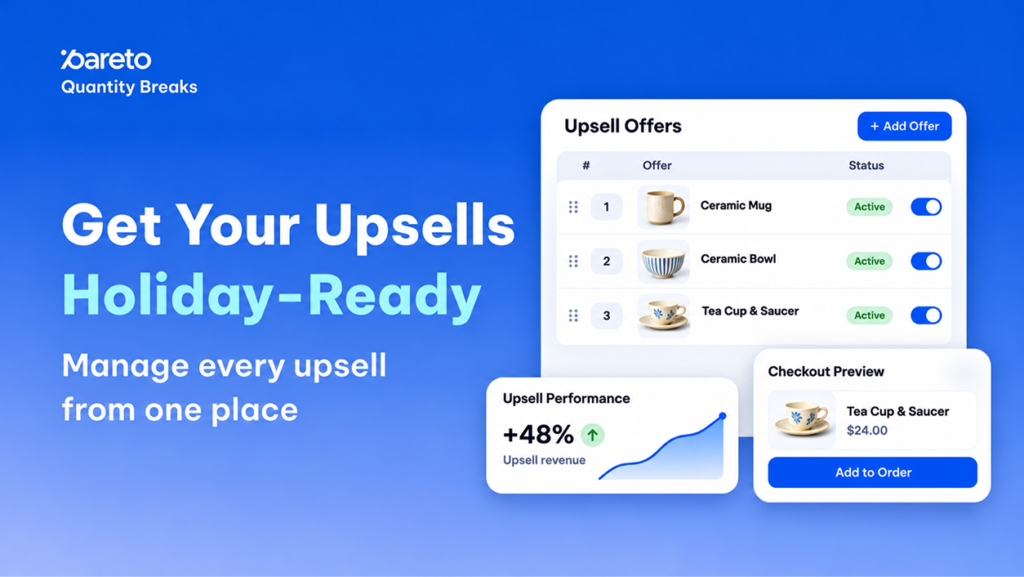
Pareto Quantity Breaks has rebuilt its Shopify upsell offers into one system. You now manage every upsell from a new Upsell menu and show them with a single Upsell offers block, in one shared priority order.
Shopify Upsell Offers Now Live in One Hub and One Block
The Upsell page sits in the Pareto app menu, right below Post-purchase upsell. It takes over from the old Checkout upsell tab inside each campaign.
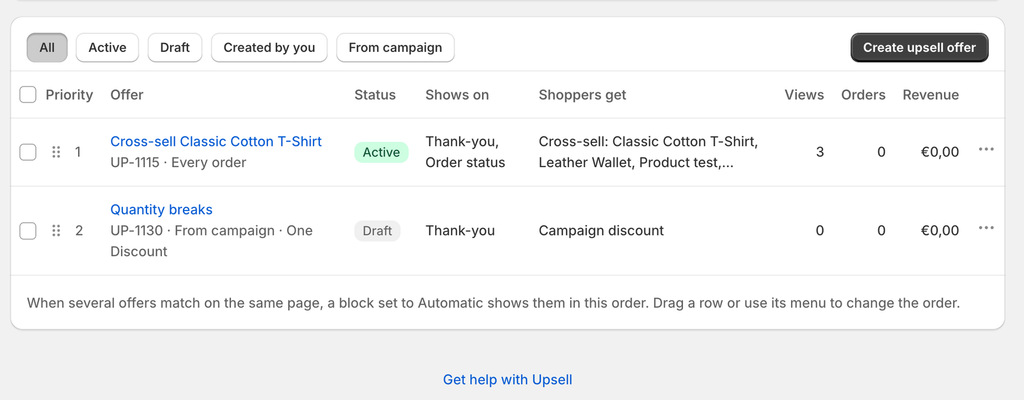
- One Upsell hub: Create, edit, turn on and prioritize every offer from one list, with its status, pages and rewards visible in one table.
- One Upsell offers block: Add it once per page in the Shopify checkout editor. It shows offers on the Thank you page, the Order status page and the Checkout page (Shopify Plus only).
- One priority order: When several offers match, a block set to Automatic shows them in your order, row 1 first, up to 3 offers. Or set the block to Specific offers and choose exactly which ones appear.
- A From campaign offer for every campaign: Each campaign except Build your own bundle gets its own upsell offer, so an existing campaign can become another chance to grow the order.
Why One Upsell Hub Helps During Holiday Campaigns
- Reorder in seconds: Drag a row by its handle, or use Move up and Move down from the row menu. No need to open each campaign.
- A cleaner shopper experience: One block with a cap of 3 offers keeps the page tidy while several campaigns run.
- No block juggling: You no longer manage multiple checkout blocks campaign by campaign.
- Faster setup with Sidekick: For a more complex cross-sell flow, ask Sidekick in your own language. Describe what you want, review the setup, then turn it on.
Discount, Cross-sell and Promote a Campaign: The Three Offer Types
When you create an offer, you pick what shoppers get under Reward.
- Discount: A lower price on specific products, collections, a product group or the whole cart.
- Cross-sell: Recommend products, collections or groups at regular price.
- Promote a campaign: Show one of your running campaigns, with that campaign’s own discount.
- From campaign: Always promotes its own campaign. Its reward, campaign and conditions are fixed, but you can still edit its name, pages, schedule and wording.
Where Shopify Upsell Offers Show: Thank You, Order Status and Checkout
- Thank you page upsell: Shows right after payment. The button opens a new checkout with the offer ready, so the offer is a separate order.
- Order status page upsell: Shows when shoppers come back to track their order, for example from the confirmation email. It works like the Thank you page.
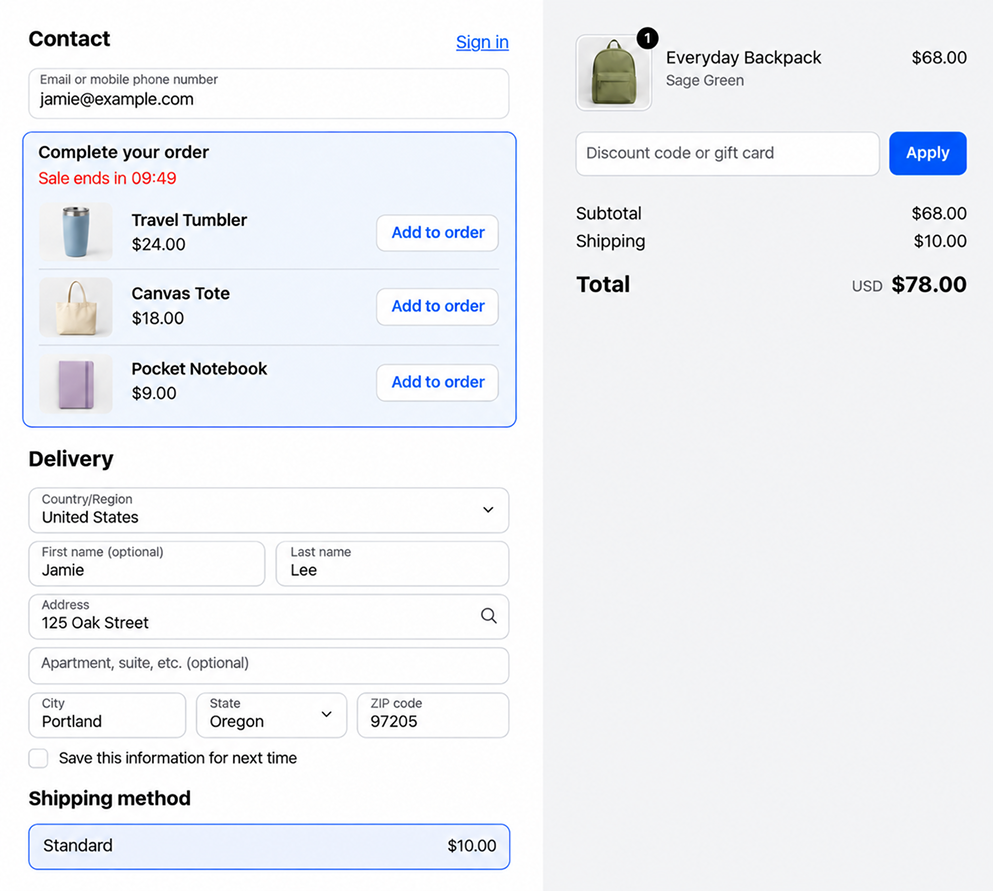
- Checkout upsell (Shopify Plus only): The offer is added to the order the shopper is paying for, so there is no second checkout.
- Conditions use the order just placed: On the Thank you and Order status pages, conditions are checked against that order. You can add up to 10, such as Cart total amount, Product, Product in collection or Campaign applied to the cart.
- Offer validity: For a Discount offer on these two pages, set Offer stays valid for from 1 to 30 days, counted from the day of the order.
How to Set Up Shopify Upsell Offers in Pareto
Quick setup (5 steps)
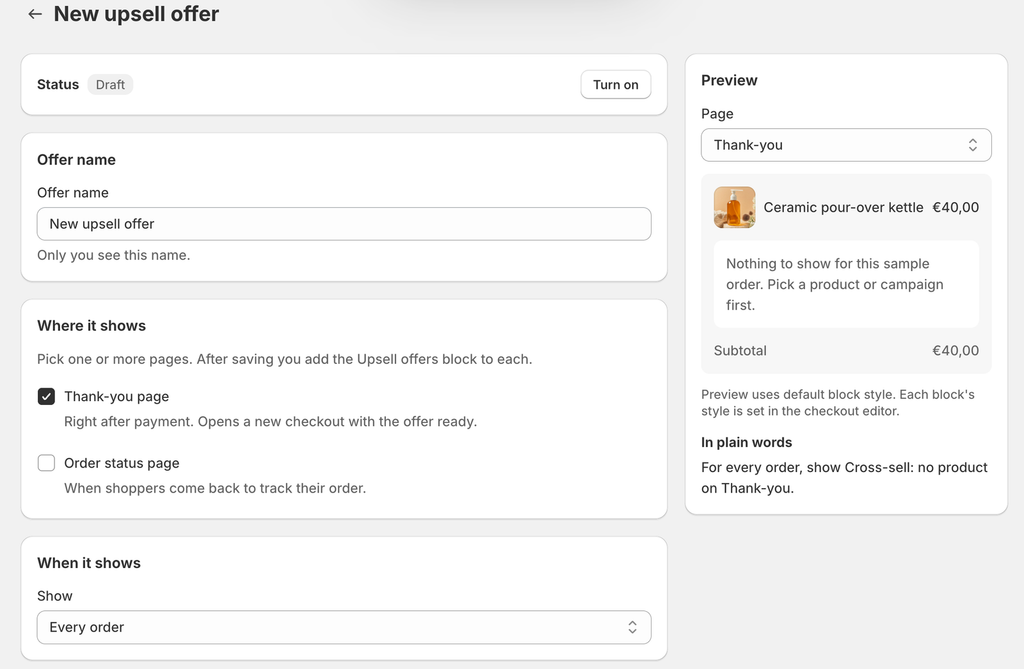
- In the Pareto app, go to Upsell and click Create upsell offer. Enter an Offer name. Only you see it.
- Choose Where it shows, When it shows, What shoppers get and Wording and schedule. In the Status section, click Turn on and save.
- Click Open checkout editor and add the app block Upsell offers from Pareto to the page you chose. Save the checkout editor.
- In the block, set Show to Automatic (use Start from position and Max offers in this block, 1 to 3) or Specific offers (paste up to 3 Offer IDs, such as UP-1001).
- Place a test order. The block then shows as Active in Upsell settings -> Blocks in your checkout. To change priority, drag the row on the Upsell page.
Offers show only after you add the Upsell offers block in the checkout editor.
Customize the block and turn campaign upsells on or off (optional)
- Block style: Set Layout (Stacked or Compact list), Card style, Image size, Button style and Heading size. Each block has its own settings, so each page can look different.
- Two blocks on one page: Set Start from position to 2 in the second Automatic block so it skips the offer the first block shows.
- Campaign switch: Open a campaign in Offers, go to the 4. Upsell tab and turn Show this campaign as an upsell on or off. New campaigns get their From campaign offer as Draft when first saved.
- Upsell settings: Click Upsell settings on the Upsell page for default wording for campaign offers, the countdown timer, the VAT display switch, translations and the list of active blocks.
What Changed for Checkout Upsell Users
- Offers migrated automatically: Each active campaign got its offer. If an old upsell switch was on, the offer is Active on the same pages. If none was on, it is saved as Draft.
- Kept as before: Your custom wording and translations stayed on each offer. Countdown and VAT switch settings moved to Upsell settings.
- Set again: Block style (card style, image size, buttons) was not carried over. Set it on each Upsell offers block in the checkout editor.
- Older blocks keep working for now: They stop showing on a page once an Upsell offers block is active on that page.
Rules, Plan Limits and Eligibility for Shopify Upsell Offers
- Free plan: 1 active offer you create, with Cross-sell and Promote a campaign rewards, and 1 offer per block.
- Paid plans: Up to 50 active offers you create, with Discount, Cross-sell and Promote a campaign rewards, and up to 3 offers per block.
- From campaign offers: They never count toward the active offer limit.
- Checkout only: Offers that promote an Order discount, Add-ons or One Discount by amount or by weight campaign, and Discount offers on All products (cart total), show only at checkout, so they need Shopify Plus.
- Not supported yet: Campaigns that target customers by tag, and Build your own bundle campaigns.
- No stacking: A Discount offer does not stack with another campaign discount on the same product.
- VAT and translations: The VAT switch is on the Growth and Advanced plans. AI auto-translate all is on the Growth, Professional and Advanced plans.
Start Using Shopify Upsell Offers Before the Holiday Rush
The Upsell hub is live in Pareto Quantity Breaks. Open Upsell in the app menu to create your first offer, and read the full Upsell setup guide for each page. If you want help setting it up before the rush, start a live chat with the Pareto team.
Get your upsells holiday-ready
Manage every Shopify upsell offer from one hub with Pareto Quantity Breaks.
Install Pareto Quantity Breaks