
New Shopify Quantity Breaks Layouts and Widgets
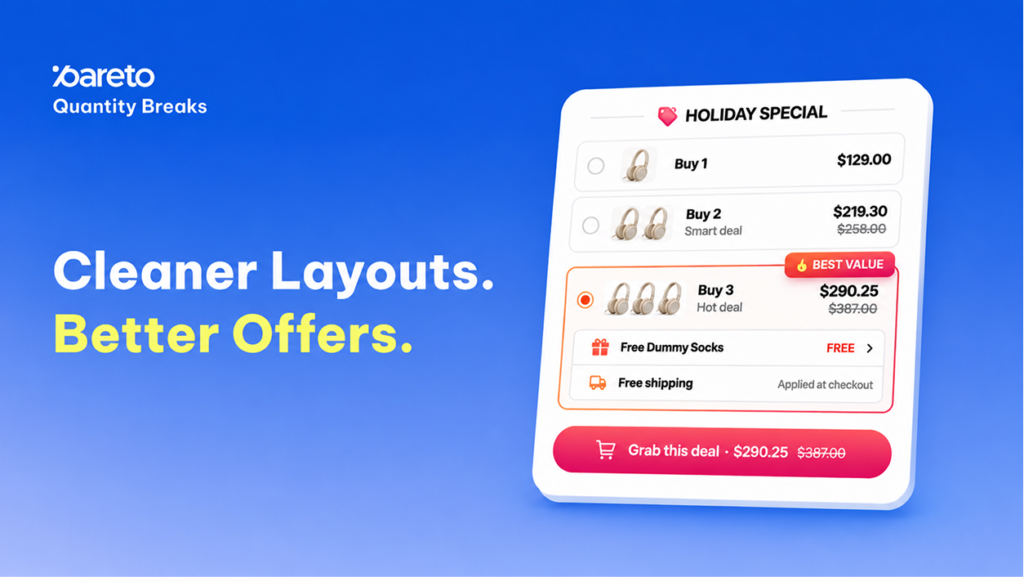
The older widget layouts, such as Table, Option variant and Card, carry a lot of color, rarely match a store’s theme, and make it hard for shoppers to compare tiers side by side. When a shopper cannot tell at a glance which tier is the better deal, they pick the smallest one or leave.
Pareto Quantity Breaks now ships a new set of Shopify quantity breaks layouts: Deal Bar, Ladder and Showcase for tiers, a Progress Card for order discounts, and product-first layouts for bundles. They use your theme font, one accent color and real product images, and every text element can be edited and translated.
New Shopify Quantity Breaks Layouts: Deal Bar, Ladder and Showcase
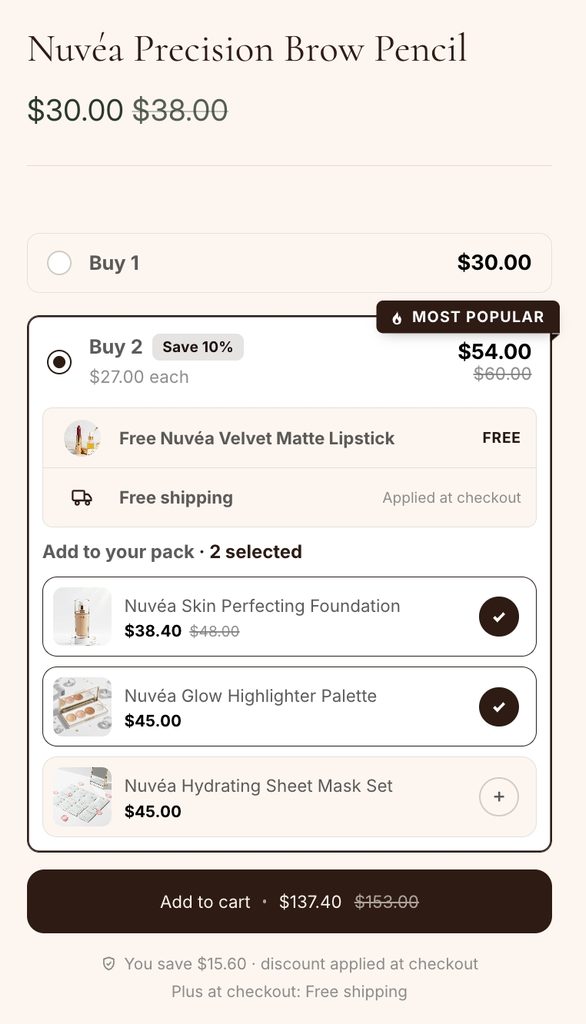
The One Discount campaign, with Quantity breaks as its main layout, gets three new ways to show your tiers:
- Deal Bar: Each tier is a horizontal bar with a subtitle, highlights and a badge, and a reward card sits underneath. Live since October 15, available on the Basic plan and above.
- Ladder: A simple tier list that makes progression easy to scan. Live since November 4, available on all plans.
- Showcase: Horizontal offer cards for a more visual presentation. Live since November 4, available on all plans.
Ladder and Showcase carry a New badge on their tiles in the layout picker.
Show Order Discount Progress with the New Progress Card
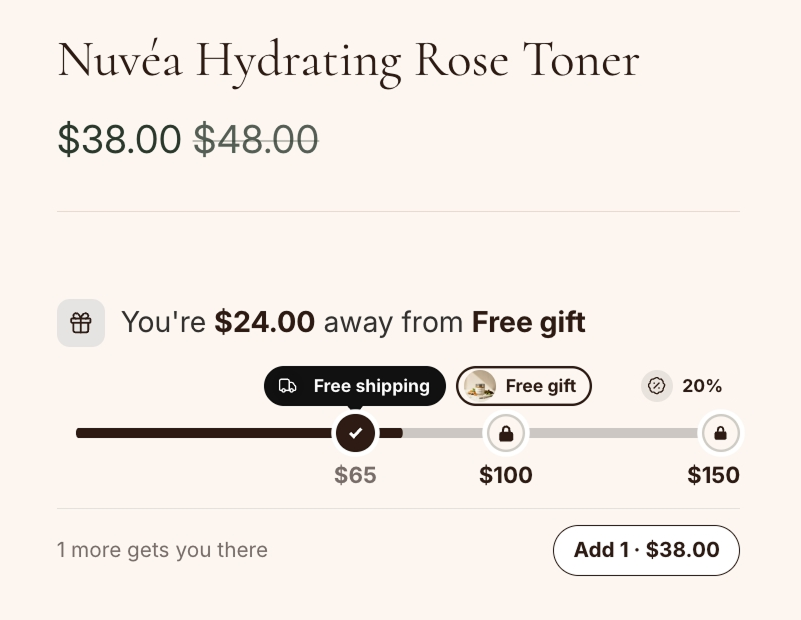
Order discount campaigns now have a Progress Card, next to Voucher Display and Threshold Display. It shows shoppers exactly how close they are to the next reward and how much more they need to spend.
- Progress bar: A bar fills as the cart grows toward each milestone.
- Reward on every milestone: Each step shows its reward, such as free shipping, a free gift or a percentage discount.
- Reminder line: A short message tells the shopper how much is left to reach the next reward.
Product-First Shopify Bundle Widget Layouts
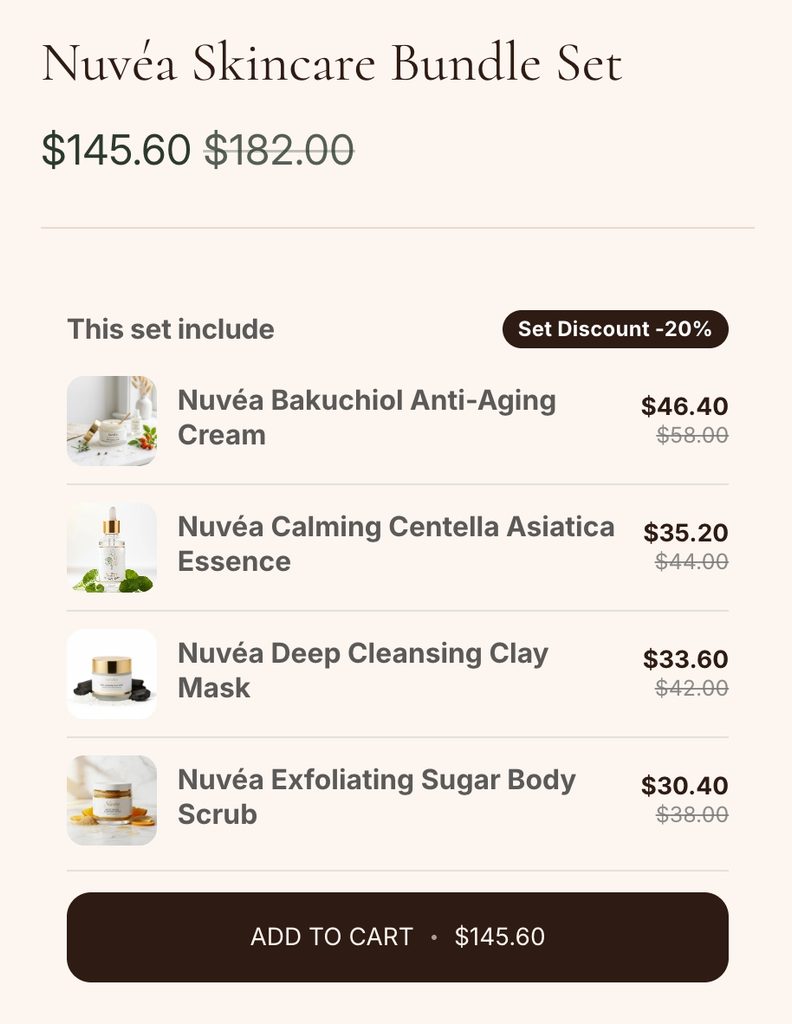
Bundle campaigns get more visual layouts, so shoppers can see what is included and choose add-ons without digging through dense offer blocks.
- Frequently bought together (FBT): Photo checklist.
- Classic bundle: In this bundle, and Photo checklist.
- Bundle add-ons: Add-on list.
Why Clearer Tier Layouts Help Shoppers Choose Faster
One e-commerce A/B test saw a 4x conversion uplift after making product choices clearer and easier to select. The new layouts follow that principle.
- Clearer tiers: Each tier is easy to compare with the next one, so the better deal stands out.
- Stronger value cues: Badges, highlights and reward cards show what the shopper gets, not just the price.
- Fits your theme: The widget uses your theme font and a single accent color instead of its own palette.
- Real product images: Shoppers see the actual products in the offer.
- Editable and translatable: Every text element and label can be edited and translated for each market.
How to Switch Your Quantity Breaks Layout (Step by Step)
Quick setup (4 steps)
- Open the campaign you want to change in Pareto Quantity Breaks.
- Go to Display settings.
- Choose a layout tile, such as Deal Bar, Ladder or Showcase for One Discount, or Progress card for Order discount.
- Click Save.
Layout Defaults, Plans and Limitations
- Running campaigns: They keep their current layout. Pareto does not switch anything for you, so you choose the new layout yourself.
- New bundles: New FBT, Classic bundle and Bundle add-ons campaigns start with the new layout: Photo checklist, In this bundle or Add-on list.
- New One Discount campaigns: Built from scratch, they still start with Table. Built from the Quantity breaks template, they start with Ladder, and you can switch to Option variant or Showcase.
- New Order discount campaigns: They still start with Voucher Display. Choose Progress card by hand.
- Deal Bar: It is not the default in any campaign type, and it needs the Basic plan or above.
Shopify Quantity Breaks Layouts FAQ
Will my live campaigns change to the new layouts?
No. Running campaigns keep their current layout until you pick a new one in Display settings.
Which quantity breaks layouts are free?
Ladder and Showcase are available on all plans. Deal Bar is available on the Basic plan and above.
Can I translate the text in the new widgets?
Yes. Every text element and label in the new layouts can be edited and translated.
Try the New Quantity Breaks Layouts Today
The new layouts are live in Pareto Quantity Breaks. Open a campaign, go to Display settings and pick the tile that fits your offer. Need help choosing the right layout? Start a live chat with the Pareto team and we will help.
Show your quantity breaks the way shoppers read them
Pick a Deal Bar, Ladder or Showcase layout and see how your tiers look on your own theme.
Install Pareto Quantity Breaks