
4 Ways to Add Shopify Discount Code Before Checkout
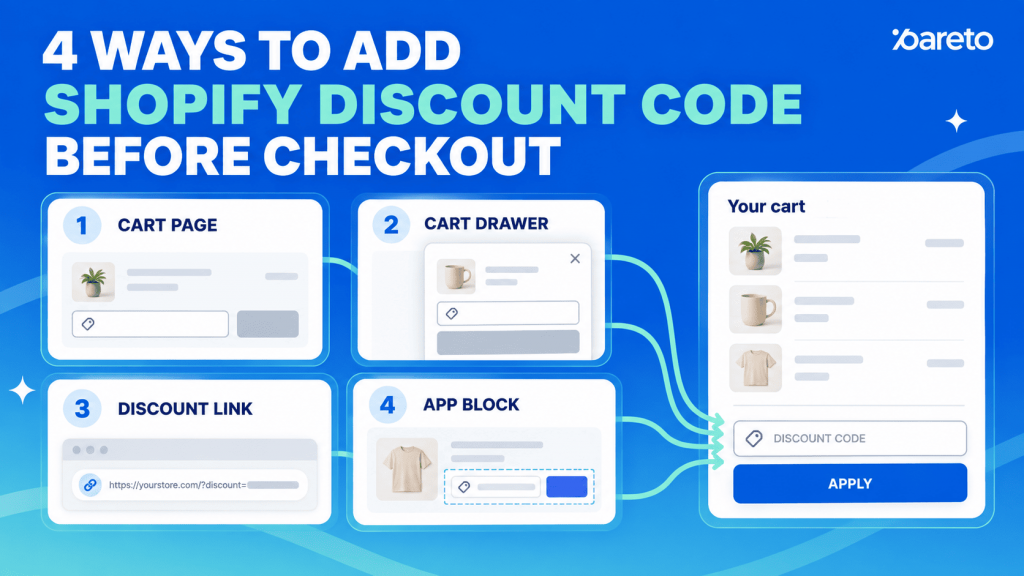
A Shopify discount code before checkout lets shoppers apply or carry a promotion while they are still on the cart page, in a cart drawer, or moving from a campaign to the store. That is different from Shopify’s default setup, where customers normally enter a code during checkout. There are 4 practical ways to handle it. You can keep Shopify’s native checkout field, send shoppers through a shareable discount link, add a custom field to a Shopify theme cart, or update discount codes through the Storefront API on a headless store. The right option depends on where the code should appear and how much control the store needs.
This guide explains each method, the setup steps, and the checks that prevent a code from failing at the last moment.
Can customers enter a Shopify discount code before checkout?
Yes, but Shopify does not add a manual discount field to every theme’s cart page by default. Shopify’s standard customer flow places the field at checkout. A merchant who wants the field earlier must add it to the cart, use an app that provides a suitable theme block, or give customers a link that applies the code for them.
Here is the quickest way to choose:
| Goal | Best method | Technical work |
|---|---|---|
| Let shoppers type a code during checkout | Native checkout field | None |
| Apply one campaign code from an email, ad, or landing page | Shareable discount link | None |
| Let shoppers type and apply a code on the cart page or drawer | Ajax Cart API or a compatible app | App setup or theme code |
| Apply codes in a custom headless storefront | Storefront API | Developer required |
| Give every eligible shopper the same offer automatically | Automatic discount | Admin setup |
Do not start by editing the theme. First decide whether customers truly need to type a code before checkout. A shareable link or automatic discount often solves the same problem with less friction and less maintenance.
Create the discount code in Shopify first
Every method starts with a valid discount in Shopify. The field, link, or API only applies a code; it does not create the offer or decide which orders qualify.
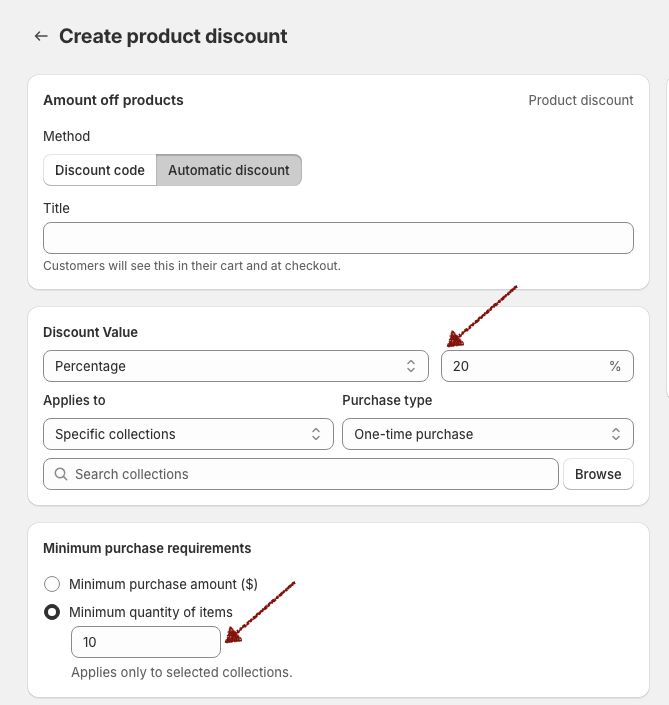
To create a percentage or fixed-amount code:
- In Shopify Admin, go to Discounts.
- Click Create discount.
- Choose Amount off products or Amount off orders.
- Under Method, select Discount code.
- Enter a clear code such as WELCOME10, or let Shopify generate one.
- Choose Percentage or Fixed amount, then enter the value.
- Select the eligible products, collections, purchase types, customers, customer segments, or markets.
- Set any minimum purchase amount or minimum item quantity.
- Choose usage limits, combination rules, and active dates.
- Click Save.
Shopify also supports code-based free shipping and Buy X Get Y offers. The settings change by discount type, but eligibility, dates, usage limits, and combination rules still matter. Shopify’s amount-off discount instructions cover the full Admin setup.
Keep the code easy to type if shoppers will enter it themselves. Avoid spaces, look-alike characters, and special characters. A short campaign code is also easier to check on a phone.
Method 1: Use Shopify’s native discount field at checkout
This is the simplest answer to how to add discount code on Shopify checkout. After at least one discount code is active, Shopify can show the field in the order summary during checkout. Customers enter the code and select Apply before paying.
The field can be less obvious on a phone because Shopify collapses the order summary by default. To keep it visible:
- Go to Settings > Checkout in Shopify Admin.
- Find the active checkout configuration and click Edit.
- Open the Sections sidebar.
- Select Order summary.
- Turn on Always show discount code field.
- Click Save.
On a one-page mobile checkout, the field appears above the collapsed order summary. On a three-page checkout, the top order summary opens by default so the field is visible. Shopify documents both layouts in its checkout style settings.
Use this method when the checkout field is early enough and the store does not need the discounted total on the cart page. It keeps the theme untouched and leaves validation to Shopify.
Method 2: Apply the code with a shareable discount link
A shareable discount link is the easiest way to apply a code before checkout without adding another form. The shopper clicks the link from an email, ad, social post, landing page, or customer-support message. Shopify saves the active code to the cart and browser, then applies it when the cart meets the offer’s rules.
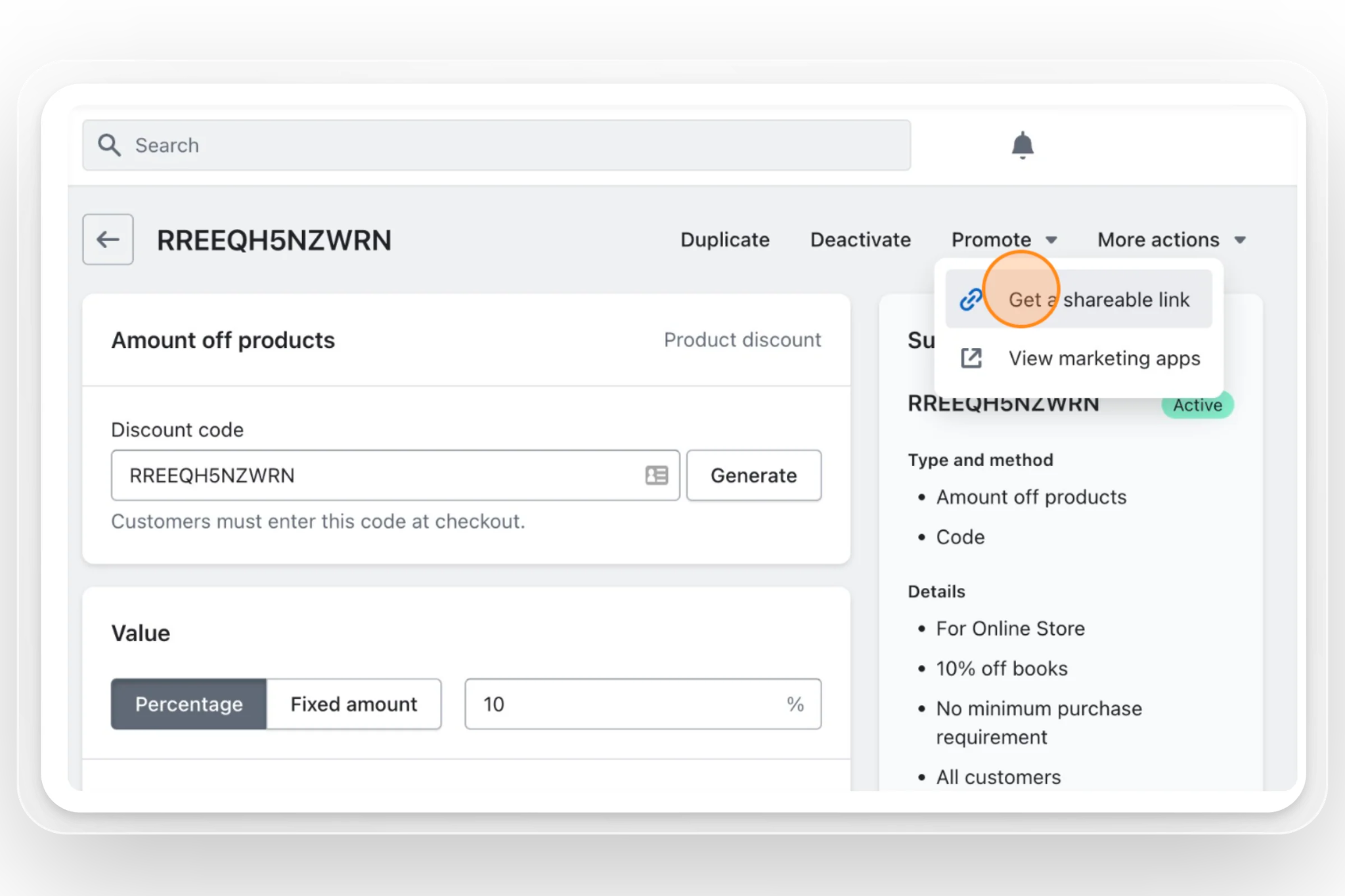
To create one:
- Go to Discounts in Shopify Admin.
- Open the saved discount code.
- Click Promote.
- Select Get a shareable discount code.
- Choose whether the link should open the home page, a product, or an eligible collection.
- Copy the link and use it in the campaign.
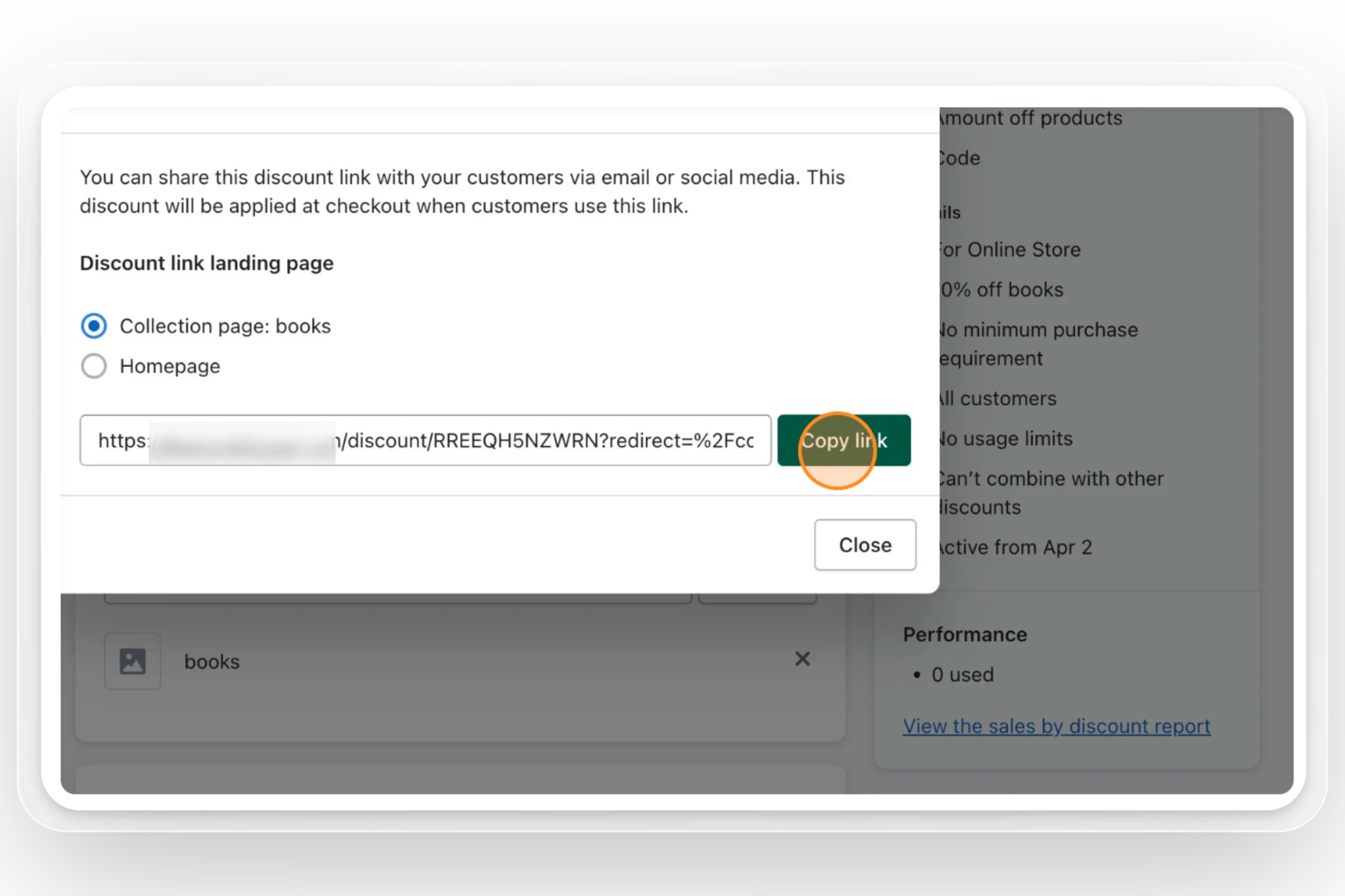
You can also redirect the shopper to another store path. Shopify uses this format:
Replace the domain, code, and redirect path. A campaign for one collection could use ?redirect=/collections/summer, while a cart-focused promotion could use ?redirect=/cart.
This method has a few limits. The link carries one discount, the code must be active, and the final result still follows the code’s eligibility and combination settings. Shopify also notes that a shareable code stays in the customer’s cart and browser until it is removed. Read the current shareable discount link rules before using the same browser for several campaign tests.
Add UTM tracking when the link is part of a campaign. That helps separate “the code was used” from “this email or ad brought the shopper to the store.”
Method 3: Add a discount code field to the cart page
A cart field gives shoppers immediate control. They can enter a code next to the subtotal, apply it, and review the cart before moving to checkout.
As of 2026, Shopify’s official Ajax Cart API supports updating discounts through POST /{locale}/cart/update.js. The request uses a discount property. It can contain one code, several comma-separated codes, or an empty string to remove codes.
This API works with themes hosted by Shopify. It is not the right API for a headless storefront.
Add a basic field with theme code
Before changing a live theme, duplicate it. Shopify’s theme-editing guidance recommends keeping a backup so the change can be discarded if it conflicts with the cart or another app. Then go to Online Store > Themes, open the theme menu, and select Edit code.
In Shopify’s Dawn reference theme, the cart footer is in sections/main-cart-footer.liquid. Other themes use different files. Place the form near the cart subtotal or checkout button, then adapt the styling to the theme.
<form id="cart-discount-form" class="cart-discount">
<label for="cart-discount-code">Discount code</label>
<div class="cart-discount__row">
<input
id="cart-discount-code"
name="discount"
type="text"
autocomplete="off"
placeholder="Enter code"
required
>
<button type="submit">Apply</button>
</div>
<p id="cart-discount-message" role="status" aria-live="polite"></p>
</form>
<script>
document.getElementById('cart-discount-form')?.addEventListener('submit', async (event) => {
event.preventDefault();
const input = document.getElementById('cart-discount-code');
const message = document.getElementById('cart-discount-message');
const code = input.value.trim();
message.textContent = 'Applying code…';
try {
const response = await fetch(`${window.Shopify.routes.root}cart/update.js`, {
method: 'POST',
headers: { 'Content-Type': 'application/json' },
body: JSON.stringify({ discount: code })
});
if (!response.ok) throw new Error('Cart update failed');
await response.json();
window.location.reload();
} catch (error) {
message.textContent = 'We could not apply that code. Please try again.';
}
});
</script>
The locale-aware window.Shopify.routes.root keeps the request on the visitor’s current language path. The page reload lets the theme render the updated cart state instead of leaving an old subtotal on screen.
This is a starting point, not a universal theme patch. A production version should style focus and error states, prevent repeat submissions, support removing a code, and explain why an offer is not eligible. Test the final validation at checkout as well.
Cart drawers need extra care
A cart drawer is updated without a full page load. Many themes replace its HTML after an item is added or its quantity changes. A script attached once can disappear when the drawer re-renders.
The field therefore needs to be part of the drawer’s own markup and JavaScript lifecycle. In Dawn, the relevant markup is currently in snippets/cart-drawer.liquid, but a paid or custom theme may organize it differently. Test opening, closing, updating, and reopening the drawer after the field is added.
If the store team does not maintain theme JavaScript, choose an app that provides a cart-compatible theme block. Shopify’s theme app extensions let apps add storefront elements without asking merchants to edit Liquid directly. Confirm that the chosen app supports the exact cart surface in use; “cart page support” does not always mean “cart drawer support.”
Method 4: Apply discount codes in a headless Shopify cart
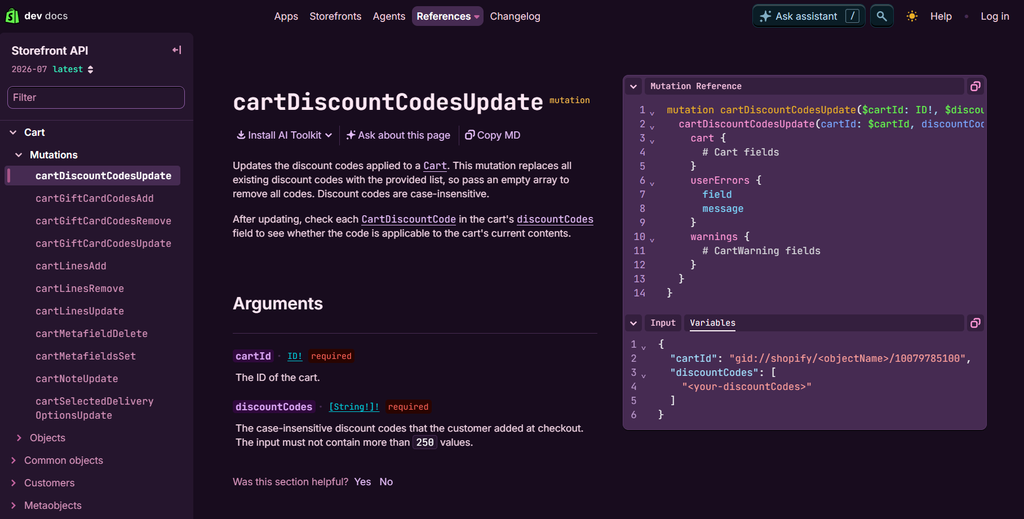
The Ajax Cart API only works with Shopify-hosted themes. A Hydrogen or another custom storefront should use Shopify’s Storefront API.
The cartDiscountCodesUpdate mutation accepts the cart ID and a list of codes. It replaces the cart’s existing code list with the new list, so the storefront must pass every code it wants to keep. After the mutation, check each returned code’s applicable status rather than assuming the request qualified for a discount. Codes are case-insensitive. Shopify provides the current mutation fields and examples in the cartDiscountCodesUpdate documentation.
This route requires a developer because the storefront must manage cart state, loading feedback, eligibility messages, code removal, and checkout handoff.
When to use an automatic discount or discount app instead of a code
A visible code field works best when the code serves a specific purpose, such as identifying an affiliate campaign, controlling access to a private offer, rewarding loyalty members, or giving a customer a recovery discount.
If every eligible shopper should receive the same saving, asking them to enter a code adds an unnecessary step. Shopify’s automatic discounts apply in the cart and at checkout when the order meets the conditions, making them suitable for storewide sales, collection promotions, and simple minimum-purchase offers.
However, applying the discount is only part of the campaign. Shoppers must also understand the offer, see what they need to buy, and know how close they are to earning the reward. A basic code or automatic discount may not communicate this clearly before checkout.
How Pareto expands a discount campaign
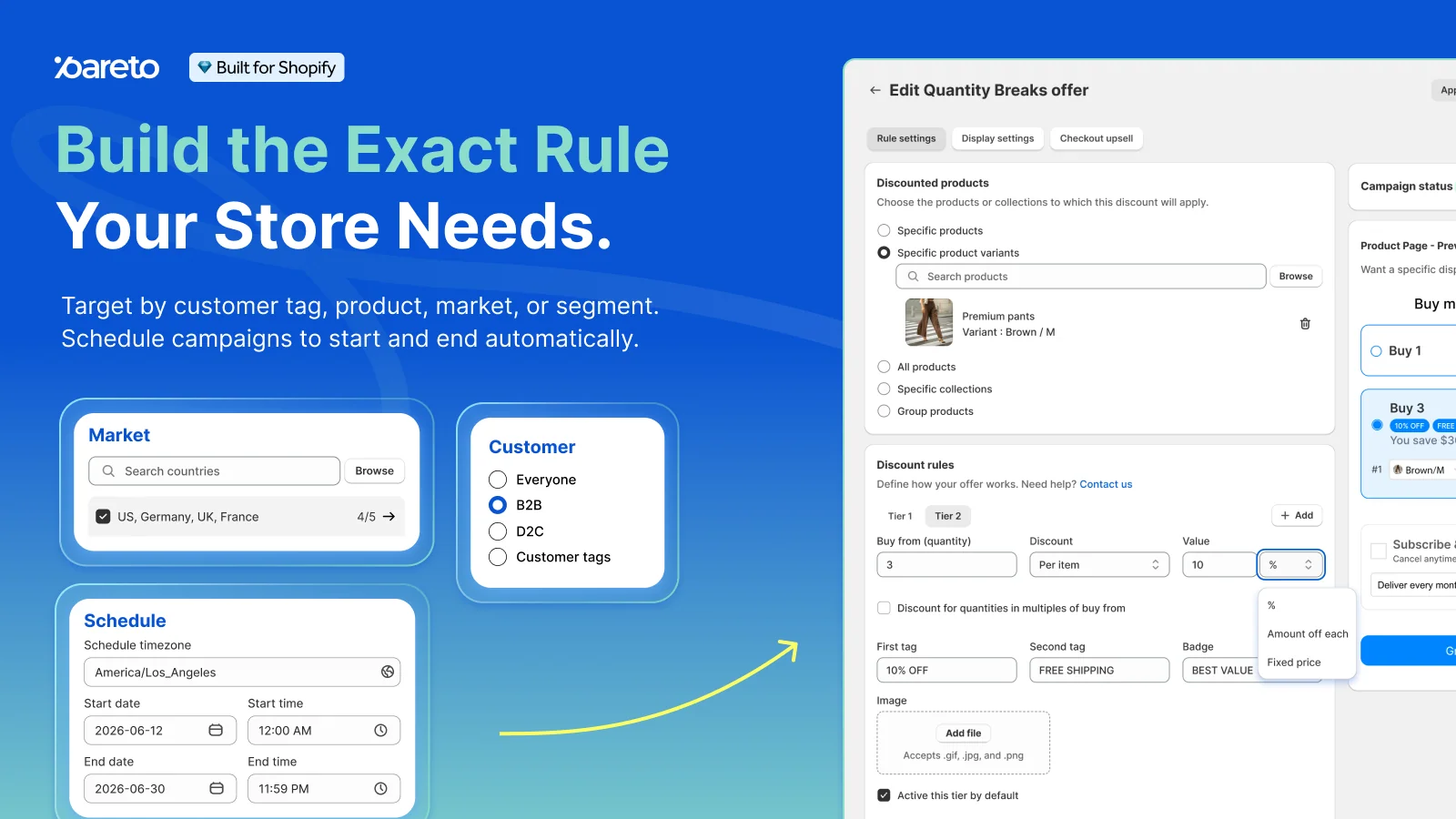
Pareto Quantity Breaks brings the promotion rule and its storefront display together. Merchants can use it to:
- Create quantity breaks, cart discounts, bundles, BOGO, free gifts, free shipping, and other reward types.
- Set conditions based on product quantity, cart quantity, purchase amount, products, collections, variants, customer tags, or markets.
- Show offer tables, cards, pop-ups, and progress messages on product pages, collection pages, the cart, and cart drawer.
- Target different promotions to retail customers, wholesale buyers, customer groups, or countries.
- Schedule campaigns and track metrics such as extra revenue, average order value, conversion rate, and top-performing offers.
For example, a code such as SAVE15 may give 15% off when a customer buys three products, but the shopper may not know why the code failed or how close the cart is to qualifying. Pareto can display “Add 1 more item to unlock 15% off” and update the message as the cart changes.
The same campaign can also offer several incentives instead of one flat discount:
- Buy 3 and save 10%
- Buy 5 and save 15%
- Buy 8 and receive a free gift
A discount code can still be used for campaign attribution or controlled distribution, while Pareto helps customers discover and complete the offer. If a native Shopify code and a Pareto promotion should apply together, merchants need to configure the discount combination rules and test the final cart.
The best choice depends on the promotion:
- Use a discount code when attribution or restricted access matters.
- Use a Shopify automatic discount for a simple offer that should apply to every eligible cart.
- Use Pareto when the campaign needs flexible rules, visible progress, customer targeting, scheduling, or performance tracking.
A code applies the saving. Pareto helps turn it into a promotion that can influence what customers add before checkout.
Best Practice: Test a Shopify discount code before checkout
Do not test only the happy path. A field that works with one code on a desktop cart can still fail for a logged-out customer, a subscription, a different market, or an express checkout.
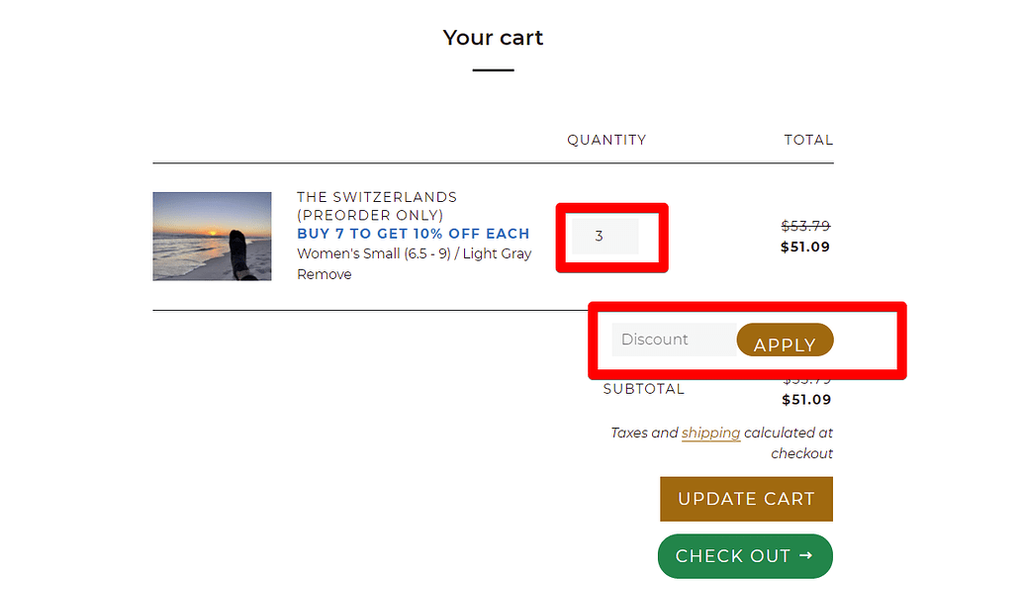
Use this checklist before publishing:
- Add an eligible product and apply the code.
- Add an ineligible product and check that the message is clear.
- Test a cart below and above the minimum amount or quantity.
- Check percentage, fixed-amount, shipping, and Buy X Get Y codes separately when the store uses them.
- Test a code that is expired, inactive, over its usage limit, and restricted to a different customer or market.
- Try the code with active automatic discounts and other manual codes.
- Confirm the correct combination reaches checkout.
- Test desktop, mobile, cart page, and cart drawer.
- Test Shop Pay and the standard checkout path.
- Verify subscriptions and one-time purchases if both are sold.
- Repeat shareable-link tests in a clean browser session because Shopify can retain the code.
- Confirm analytics and UTM data after placing a test order.
Shopify currently allows customers to use up to five product or order discount codes plus one shipping discount code on an order, but only eligible combinations apply. If codes cannot combine, Shopify selects the best allowed result and shows a checkout message. Review discount combination rules instead of assuming every active code will stack.
Shopify discount code before checkout FAQ
Does Shopify have a discount code box on the cart page by default?
Not on every theme. Shopify provides the standard discount field at checkout. A cart-page or cart-drawer field is a custom theme or app feature.
Can a discount code apply automatically from a URL?
Yes. Create and save the code, then use Shopify’s shareable discount link. You can add a redirect so the shopper lands on a chosen product, collection, or cart page.
Can customers use more than one discount code?
Yes, when the discount classes and combination settings allow it. Shopify’s current limit is five product or order codes and one shipping code per order. Incompatible codes will not all apply.
Can an invalid code be checked before checkout?
Yes. A custom cart can submit the code and tell the customer whether it worked. Shopify will check it again at checkout to confirm that the cart still meets all conditions.
Do I need Shopify Plus to add a cart discount field?
No. You can add a discount field to a standard Shopify cart without Shopify Plus. Plus is only required for certain checkout customizations, not for a field on the cart page or cart drawer.
Should the code field go on the product page too?
Usually, no. The cart is a better place because customers can see whether their products, quantities, and subtotal meet the discount conditions. Add the field to a product page only when the code applies to that specific product.
Final Words
Adding a Shopify discount code before checkout can be as simple as showing a code field, but some promotions need more than that. Whatever approach you choose, explain the rules clearly and test the offer with different carts. If you need quantity breaks, bundles, free gifts, customer targeting, or on-site campaign messages, an app like Pareto can manage the promotion more effectively than a basic coupon field.