
New: Full control of translated limit messages
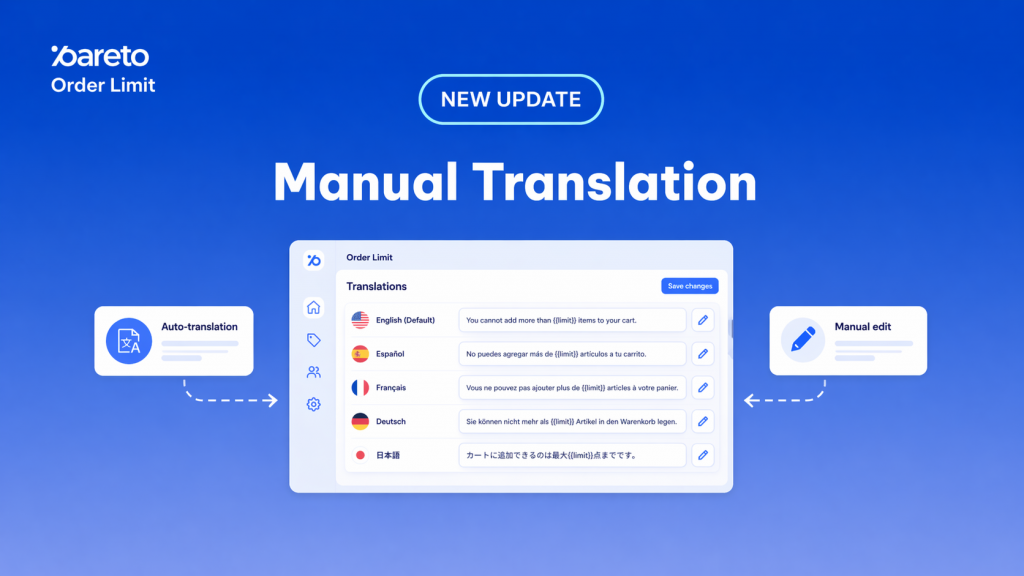
In the fast-paced world of global e-commerce, speed is often the priority. For a long time, Pareto Order Limit handled your international growth with high-speed Auto-translations. It was fast, it was convenient, and it got the job done.
But we know that “fast” isn’t always “perfect.” A slightly awkward translation or an unnatural phrasing in a limit message can be the difference between a confident purchase and a confused exit. If a customer doesn’t intuitively understand why they can’t check out, they won’t stick around to figure it out – they’ll move to a competitor.
That’s why we are excited to launch Manual Translation: giving you total editorial control over every limit message for every market you serve.
Why Precision Matters for International Traffic
When you sell globally, your limit notifications (Min, Max, and Multiples) are critical touchpoints. Moving beyond “good enough” translations allows you to:
- Refine the Nuance: Correct awkward phrasing that AI might miss.
- Stay On-Brand: Ensure your brand voice remains consistent, whether your customer is shopping in Paris, Tokyo, or Berlin.
- Boost Confidence: Clear, natural language builds trust. When customers understand the “why” behind a limit, they are far more likely to complete their purchase.
🆕 Full control of translated limit messages
Besides using Auto-translation, now you can:
- Review and edit translations after auto-translation
- Create your own custom message for each language
- Make notifications clearer and more on-brand for every market
The results?
When customers see clearly-written messages in their own language, they feel more confident buying from you without confusion.Seamless and personalized buying experience for them, better conversion from international traffic for you!
Where to find it:
- Open your Pareto app admin.
- Edit an existing limit rule or create a new one.
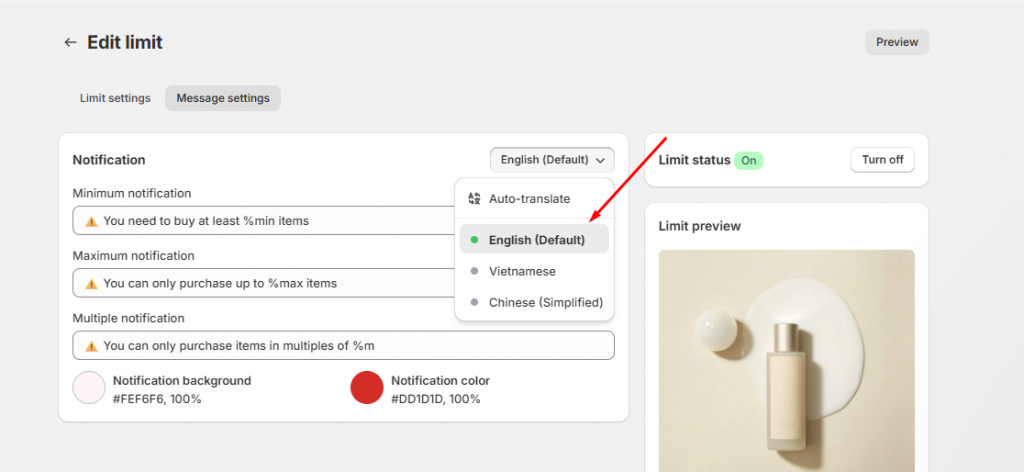
- Switch to the Message settings tab.
The Language Dashboard: On the top right of the notification box, you’ll see a language dropdown that syncs directly with your published Shopify languages.
🟢 Green dot: This language is already localized and ready to go.
⚪ Grey dot: This language is currently using your Default Language as a fallback.
Pro-Tips for Perfect Localizations
To make the most of this update, keep these best practices in mind:
⚠️ Protect Your Variables: When writing your manual translations, do not remove or change the dynamic variables (e.g.,
%min,%max,%m). Our system needs these to inject the actual numbers from your rules into the message.
- Correct: “Vous devez commander au moins %min articles.”
- Incorrect: “Vous devez commander au moins 5 articles.” (This won’t update if you change the rule later!)
Missing a Language? If a specific market isn’t appearing in your Pareto dropdown, ensure that the language is added and published in your Shopify Admin > Settings > Languages. Once it’s live in Shopify, Pareto will pull it in automatically.
Your customers deserve a shopping experience that feels locally relevant and naturally written. By refining your limit messages, you aren’t just fixing text – you’re removing friction from the international buyer’s journey.
👉 Explore Manual Translation Now
Refine every message and create a smoother shopping experience for every market.
Try Pareto on Shopify