
Volume Discounts on Shopify POS with Pareto: Upsell at the Counter
Your online store shows shoppers “Buy 3, save 20%”. At the counter, that offer often disappears. Staff can’t see the tiers, so they can’t suggest the next one, and on POS Lite the cart is rung up at full price because Shopify does not run automatic discounts there.
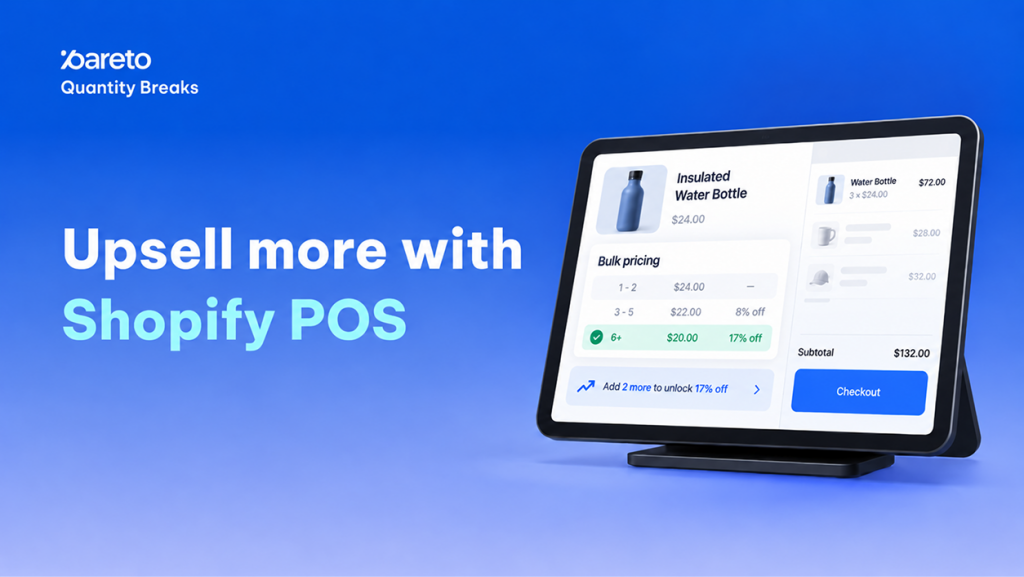
Pareto Quantity Breaks now brings volume discounts on Shopify POS, on both POS Pro and POS Lite. Your staff see the same Quantity Break and One Discount tiers your online customers see, show shoppers how much they save by buying more, and apply the eligible discount in POS. Your online offers now work at the register too.
Pareto Volume Discounts Now Work Inside Shopify POS
The Pareto Volume Discount extension adds three things to Shopify POS, so tier pricing is visible wherever staff work:
- A tile on the smart grid: shows the cart state at a glance, for example “3 discounts ready”, “2 upsell chances” or “$214.50 applied”. Tapping it opens the Pareto screen.
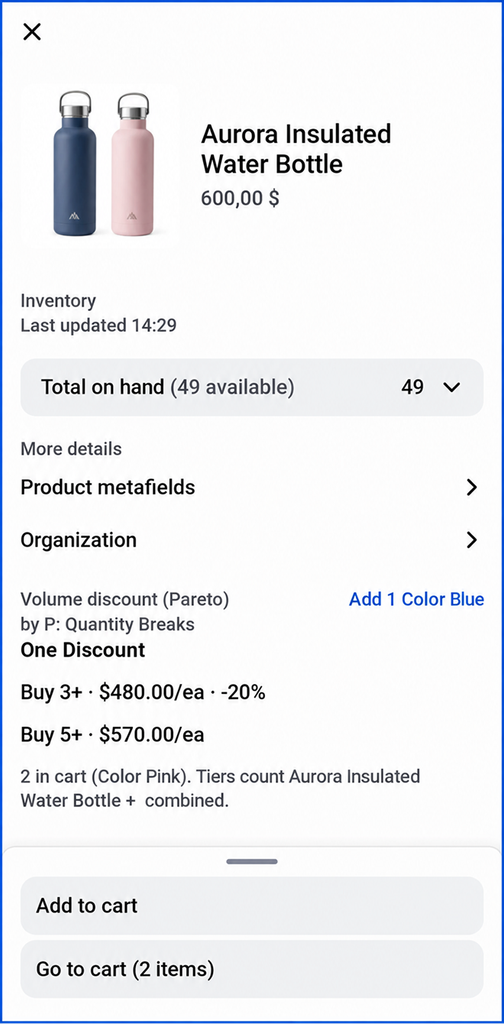
- A Volume discount block on product pages: lists the full tier table for any product with an active Quantity Break or One Discount campaign, for example “Buy 3+ · $11.96/ea · -20%”, with the current tier tagged and the units already in the cart.
- A View Pareto offer action on cart line items: tap a line to see that product’s offers, the next tier and an Apply button.
- Same rules as online: tier thresholds count all variants in the campaign scope combined, exactly like your online store.
Why Shopify POS Quantity Breaks Lift In-Store Order Value
The best moment to suggest one more unit is while the customer is already paying. Visible tiers turn that moment into a simple, honest upsell.
Upsell at the next tier
A customer buying 2 items when the discount starts at 3 can see the better price right away. Staff offer one more unit, not a hard sell.
One price, every channel
Shoppers get the same tier price in-store as online, so there is no “it was cheaper on the website” conversation.
Discounts on POS Lite
POS Lite does not run automatic discounts. Pareto calculates the online discount and staff apply it in one tap, so you stop losing the offer at checkout.
Order discount progress
Staff can see how much more a customer needs to spend to reach an order level discount and point it out before checkout.
Volume Discounts on Shopify POS Pro vs POS Lite
The extension works on both plans, with one difference in how discounts reach the cart:
POS Pro: Shopify applies your Pareto discounts automatically. The extension shows what is already applied and what the customer could get next.
POS Lite: Shopify does not run automatic discounts, so the cart would normally be sold at full price. Pareto calculates the same discount your online store would give, and staff apply it from the Pareto screen in one tap.
How Staff Upsell In Store with Pareto on Shopify POS
Everything staff need sits on one Pareto screen, opened from the smart grid tile:
- Ready to apply: tap Apply all to add every qualifying discount to the cart in one go. The cart updates and a toast confirms how much the customer saved.
- Upsell opportunities: each row shows what to add to reach the next tier, how much more the customer pays and how much more they save. Tap Add N to add those units.
- Order discount progress: shows how much more the customer needs to spend to reach an order level discount.
- Applied: review every Pareto discount on the cart, including the ones Shopify applied automatically.
Staff can also tap any cart line item and choose View Pareto offer to see that product’s tiers, apply its discount or add units to reach the next tier.
Step-by-Step: Set Up Volume Discounts on Shopify POS
The extension does not appear by itself after you install Pareto. Add the Pareto tile to your smart grid once, using either option below.
Option 1: From the Shopify admin (all locations, 6 steps)
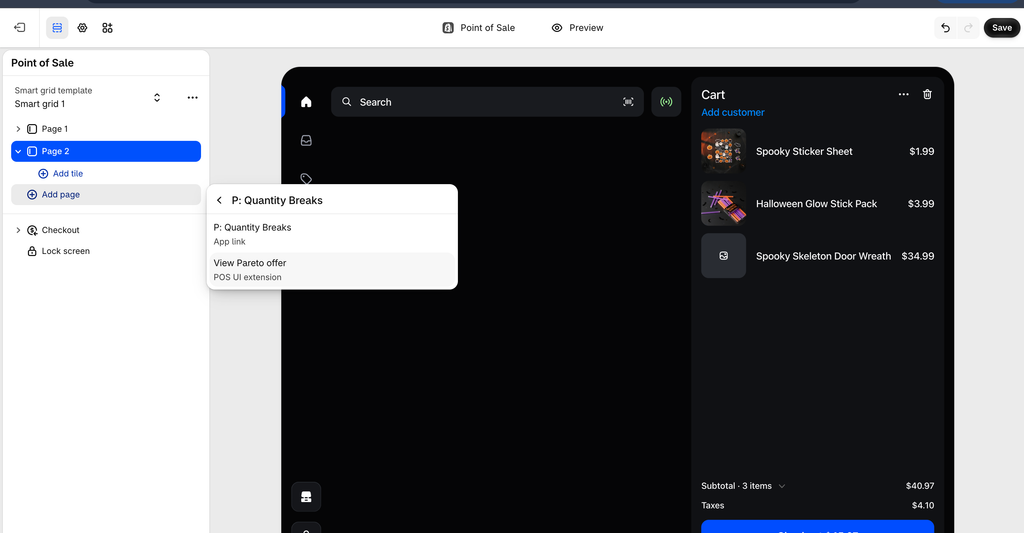
Use this if you have several locations and want the same smart grid everywhere.
- In your Shopify admin, go to Sales channels -> Point of Sale.
- In the Customize the in-store experience section, click Edit next to POS app.
- In the Smart grid section, choose the smart grid template you use, then click Add tile.
- Click Embedded Apps and select Pareto Volume Discount.
- Click Save.
- Back in the Point of Sale channel, click Edit Point of Sale, open the Apps section in the editor menu bar, and turn on the Pareto Volume Discount extension for the product details and cart line item surfaces. Click Save.
Option 2: From the Shopify POS app (this location only, 3 steps)
Use this to set up a single device quickly. You need to be the store owner or have the Customize smart grid staff permission.
- On the POS home screen, tap Add tile in the smart grid.
- Select Pareto Volume Discount from the list of apps.
- Tap Save.
After either option, open Shopify POS on your device. The Pareto tile appears on the home screen and the Volume discount block appears on product pages.
Before you start: your Pareto discount method must be set to Automatic in Pareto settings. Offers are not available on POS when Manual discount mode is on. Full walkthrough: Using discounts with Shopify POS.
Shopify POS Discount Rules, Eligibility and Limitations
- No overwriting: if a line already has a discount from Shopify, a discount code or a manual staff discount, Pareto displays it and does not apply another one.
- Live recalculation: when cart quantity changes, Pareto recalculates the tier and updates or removes the applied discount. A toast tells staff when a line changes tier or no longer qualifies.
- One cart discount at a time: Shopify POS allows a single cart level discount. If one already exists, Pareto shows Compare discounts so staff can keep it or replace it with the Pareto order discount.
- Customer-specific campaigns: these apply only once a customer is added to the cart.
- Not supported on POS: weight based pricing, order discounts that exclude some products, and offers priced in a currency different from the POS location.
- Currency and cart size: amounts show in the POS session currency. Very large carts show offers for the first 250 lines only.
Activate Volume Discounts on Shopify POS Before BFCM
The POS extension is live now for Pareto Quantity Breaks merchants. Add the tile, check that your discount method is Automatic, and your existing volume discount campaigns start showing at the counter. With BFCM close, it is a good time to make sure your in-store and online promotions run on the same rules.