
How to Exclude Products from Discounts on Shopify
Running a sitewide sale sounds simple until you remember your new releases and high-margin items can’t take the hit. Shopify has no built-in “exclude this product” button, which leaves many owners stuck discounting everything or nothing. The good news: learning how to exclude products from Shopify discounts takes just a few workarounds. Keep reading to see the exact steps so you can protect your profits without limiting your sales.
Why You’d Want to Exclude Products from Discounts
Before diving into the how-to, let’s talk about why this matters. There are tons of good reasons to exclude certain products from your promotions.
Maybe you’ve got brand restrictions where certain manufacturers don’t allow discounts. Or perhaps you’re selling items with razor-thin margins that can’t handle a price cut. New arrivals often need to stay at full price for the first few weeks, and gift cards typically can’t be discounted anyway.
Some store owners want to avoid double discounts – where an item that’s already on sale gets an extra discount on top. That’s a quick way to hurt your bottom line. Others have premium products that lose their exclusivity if they’re constantly on sale.
Whatever your situation, excluding products gives you control over your pricing strategy. You can run attractive promotions without accidentally giving away too much profit.
Method 1: Using Discount Codes to Target Specific Items
Here’s the first trick – instead of thinking about what to exclude, think about what to include. Shopify’s discount codes let you apply discounts to specific products or collections. Everything else automatically gets left out.
Setting Up a Targeted Discount Code
Start by heading to your Shopify admin and clicking on “Discounts.” Hit “Create discount” and choose the amount off option. You can do a percentage (like 15% off) or a fixed amount (like $10 off).
Pick “Discount code” as your method and give it a name. Something like “SUMMER20” works great. Now comes the important part – in the “Applies to” section, choose “Specific products” or “Specific collections.”
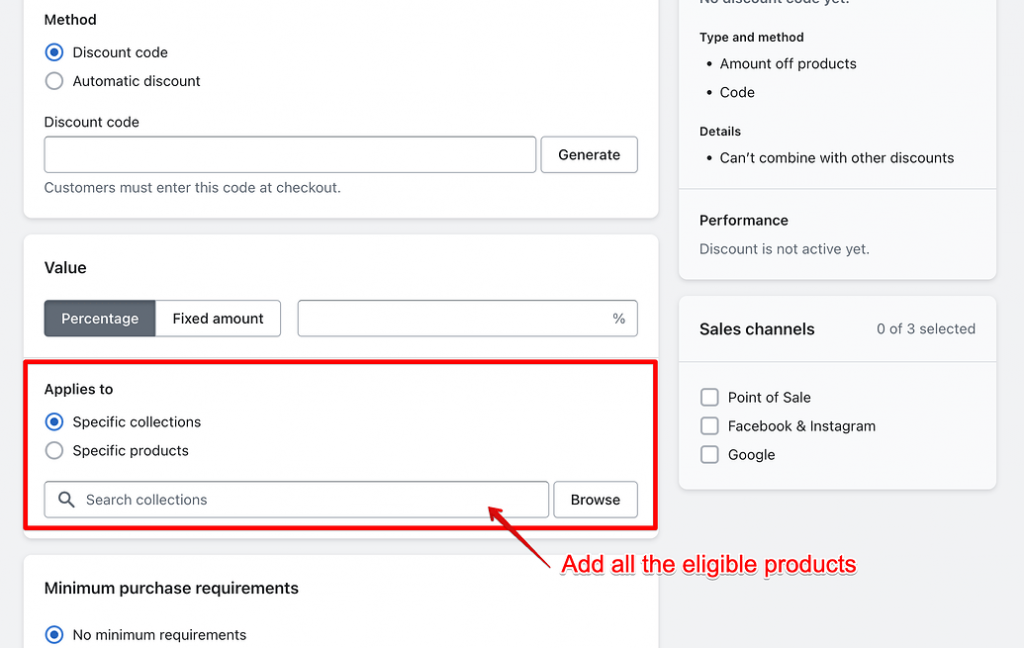
This is where the magic happens. Instead of selecting everything and trying to exclude items, you’re going to select only the products that SHOULD get the discount. Click “Browse” and pick the products or collections you want to include. Everything you don’t select won’t get discounted.
Say you want 20% off everything except your premium line. Just select all your other collections and leave the premium one out. When customers use the code, it’ll only apply to the selected items.
Don’t forget to set your dates and usage limits. You might want the code to work for a week, or limit it to one use per customer. Hit save, and you’re done.
What Works Well With This Method
This approach is perfect for simple exclusions. If you’ve got one collection you want to keep at full price, it’s super straightforward. The whole thing uses Shopify’s built-in system, so there’s no extra cost or complexity.
It’s also great for targeted promotions. Want to give 10% off just your t-shirt collection? Easy. Need to discount everything in your clearance section but nothing else? No problem.
Where This Gets Tricky
The main headache comes when you want to exclude just a few items from a big sale. Let’s say you’ve got 500 products and want to exclude 5 of them. You’d have to manually select the other 495 products, which is a pain.
Also, discount codes only work if customers actually enter them. If someone forgets to type in the code, they won’t get any discount at all.
There’s also a limit – you can only select up to 100 specific products per discount code. If you need more, you’ll have to use collections instead.
Method 2: Automatic Discounts with Smart Targeting
Automatic discounts work similarly to discount codes, but they apply themselves. Customers don’t need to remember a code – the discount just shows up in their cart when they meet the requirements.
Creating an Automatic Discount
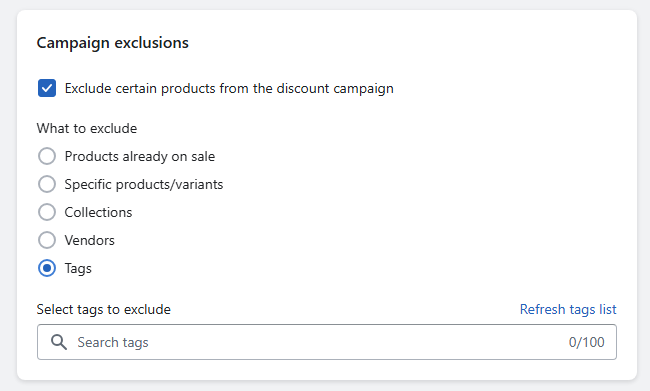
Go to “Discounts” in your admin and create a new discount. This time, choose “Automatic discount” as the method. Give it a name that customers will see, like “Weekend Sale.”
Just like with discount codes, you’ll use the “Applies to” section to choose specific products or collections. Pick what should get discounted, and everything else stays at full price.
You can add requirements too. Maybe the discount only kicks in when someone spends $50, or when they have at least 3 items in their cart. This gives you even more control over when the discount applies.
Set your start and end dates, then save the discount. Now it’ll automatically apply to qualifying items in customers’ carts.
The Big Limitation
Here’s something important – Shopify allows up to 25 active automatic discounts on all plans. Creating a new automatic discount does not replace or deactivate existing ones. If multiple automatic discounts are eligible for a cart, Shopify evaluates their combination settings and automatically applies the valid discount or combination of discounts that provides the best value to the customer. Shopify Plus is not required to have multiple automatic discounts active – it is only needed for certain advanced discount stacking capabilities, such as combining multiple product discounts on the same line item.
Also, automatic discounts and discount codes can work together. Shopify’s Discount Combinations feature allows customers to use an automatic discount and one or more discount codes on the same order, provided the discounts are eligible and each discount’s Combinations settings allow the other discount’s class (Product, Order, or Shipping). If the discounts can’t be combined, Shopify automatically applies the best valid discount or combination available and informs the customer if a discount code can’t be used with their existing discounts.
Making It Work for You
Automatic discounts are fantastic for time-limited sales. You can set them to start and stop automatically, perfect for weekend sales or holiday promotions.
They’re also great for encouraging larger purchases. Set a minimum spend requirement, and customers will see the discount appear when they hit that threshold. It’s a nice way to boost your average order value while still excluding certain products.
Method 3: Getting Creative with Collections and Tags
This is where things get interesting. You can use Shopify’s collections feature to create a group of “discount-eligible” products, then apply your promotions only to that collection. It’s like creating a VIP list for your discounts.
Setting Up an Exclusion System
The trick is to tag products you DON’T want discounted, then create a collection that includes everything WITHOUT that tag.
First, go through your products and add a tag like “no-discount” to items you want to exclude. This might be your premium products, new arrivals, or anything else you want to keep at full price.
Next, create a new collection. Go to “Products”, then “Collections”, and click “Create collection.” Choose “Automated” and set the condition to “Product tag is not equal to no-discount.”
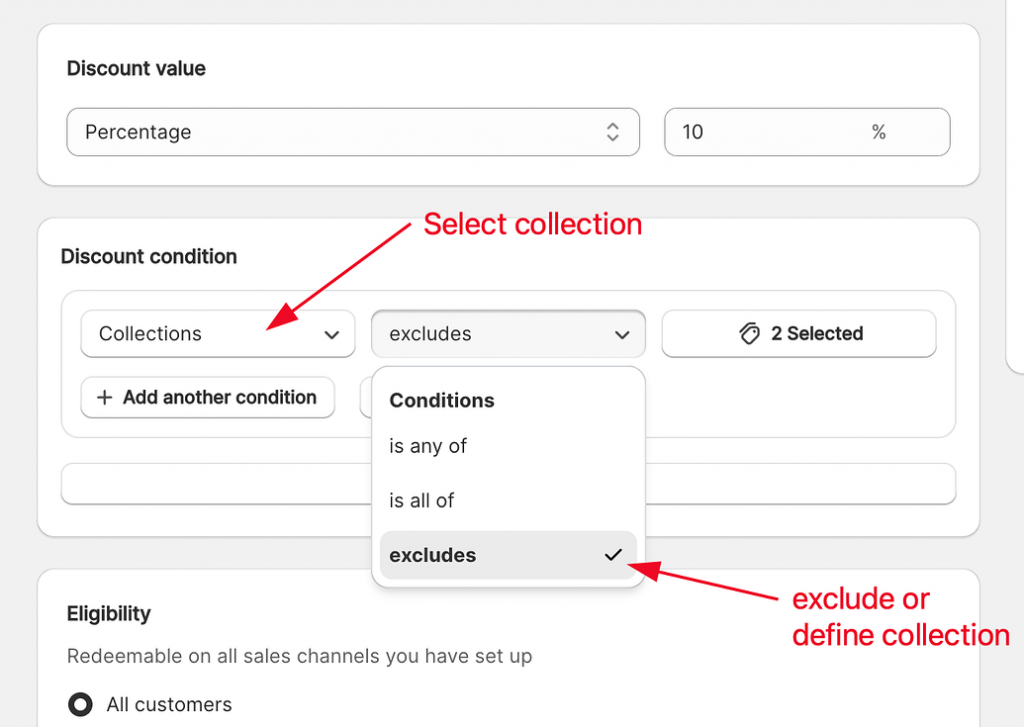
This creates a collection containing every product that doesn’t have the “no-discount” tag. In other words, it includes everything EXCEPT the items you want to exclude.
Now, when you create discount codes or automatic discounts, just apply them to this collection. The discount will hit everything in the collection (the items without the tag) and skip everything else.
Advanced Collection Tricks
You can get pretty sophisticated with this approach. Want to exclude anything that’s already on sale? Set your collection condition to “Compare at price is empty.” This includes only products that aren’t already marked down. This works cleanly for single-variant products. For products with multiple variants, Shopify matches is empty if any variant has a blank compare-at price – so a partially-discounted product can still slip into the collection. For reliable exclusion of sale items, tag them instead.
Need to exclude products from a smart collection? While you can use conditions like Product vendor is not equal to BrandName or Product price is less than / greater than to filter products, be aware that Shopify notes is not equal to conditions for Product vendor and Product type can behave unexpectedly, especially when multiple exclusions are combined. For more reliable exclusions, Shopify recommends using product tags with Tag is equal to (or Tag is not equal to, where supported) instead of relying on multiple vendor or type exclusion rules.
You can even combine multiple conditions. Maybe you want to exclude both your premium brand AND anything already on sale. Just add both conditions to your collection rules.
Why This Method Rocks
Once you set it up, it mostly runs itself. Tag a new product as “no-discount” and it automatically gets excluded from future promotions. No need to edit every discount code or remember which products to avoid.
It’s also super flexible. You can create different collections for different types of exclusions, then pick the right one for each promotion.
Downsides of This Method
This approach isn’t perfect, and a few gotchas are worth knowing before you build your whole discount strategy around it.
- It takes setup time upfront. You need to tag every product you want excluded before creating the collection, which is tedious if you’re doing it for the first time on a large catalog.
- It’s easy to forget a tag. If you add a new premium product but forget to tag it “no-discount,” it’ll automatically fall into your discount-eligible collection and get discounted by mistake.
- Automated collections can take time to update. Shopify doesn’t always refresh automated collections instantly, so a newly tagged product might briefly show up in the wrong collection until Shopify catches up.
- Tags can get messy. If you’re already using tags for other things (like inventory tracking or filtering), adding discount-related tags on top can clutter your tagging system and cause conflicts down the line.
- It only works with collection-based discounts. This method depends on applying your discount to a collection, so it won’t help if you need a one-off exclusion for a single promotion without building a whole collection around it first.
- Someone has to maintain it. As your catalog grows, someone on your team needs to stay on top of tagging new products correctly, or the whole system slowly breaks down.
It’s a solid workaround, but it works best as an ongoing system you maintain, not a quick one-time fix.
Method 4: Advanced Control By Using A Third-Party App
If Shopify’s built-in tools aren’t cutting it, apps built for advanced discount management can fill the gap. Pareto Quantity Breaks & Discounts is designed for quantity breaks, upsells, cross-sells, and campaign targeting across products and collection. That makes it easier to run structured promotions without relying on manual discount codes or one-off workarounds.
Think of Pareto as a rules engine for your discounts. Instead of manually building one discount code at a time, you set up campaigns that target exactly who and what you want:
- Target by product, variant, or collection – apply discounts to selected products, variants, or collections, or create custom groups based on vendor, tag, price, title, product type, SKU, or variant title.
- Layer in upsells and cross-sells – show extra offers on the checkout page (Shopify Plus), immediately after checkout with post-purchase upsells, or on the thank-you and order status pages.
- Apply discounts automatically – Pareto uses Shopify’s built-in discount function to apply offers at checkout, so customers never have to remember or type in a code.
- Discount all products with exclusions – apply the discount storewide, then exclude specific collections, products, variants, price ranges, compare-at prices, SKUs, or variant titles. You can combine multiple exclusion rules using AND or OR.
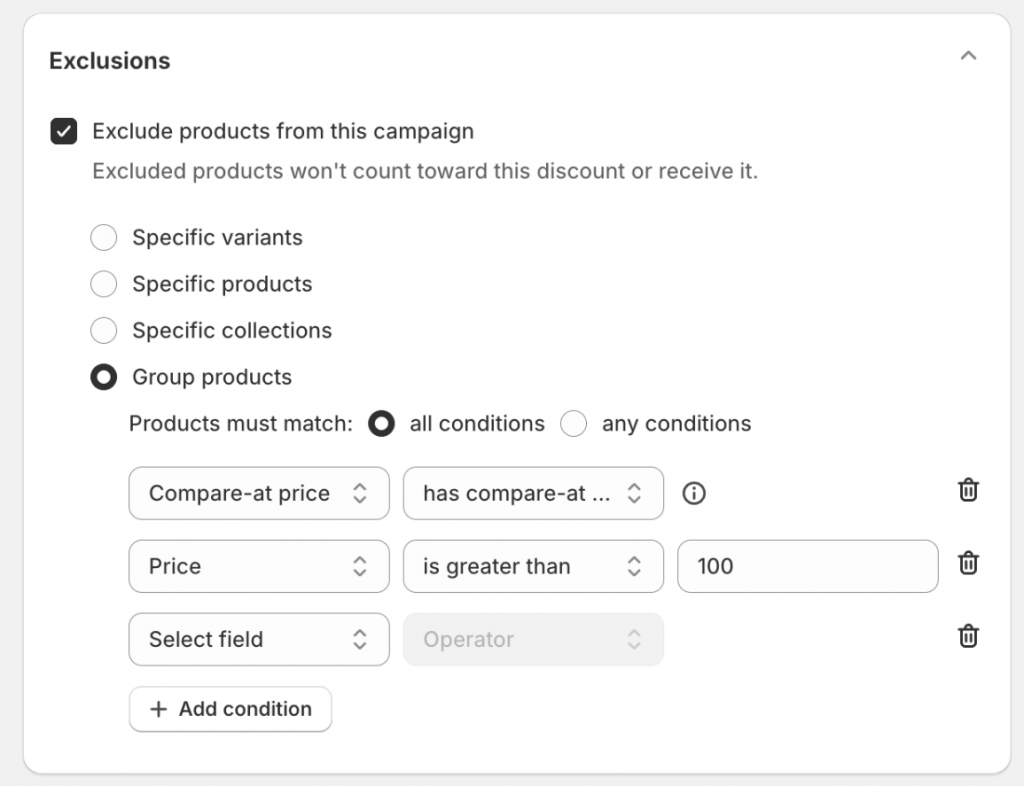
Apps like this let you build promotion logic that goes beyond a single discount code. You can run different campaign types, combine product-level and order-level rules, and automatically apply eligible discounts at checkout, so customers don’t have to remember or enter a code.
If you want to set minimum or maximum quantities, order value limits, or other buying restrictions, Pareto Order Limit can handle that separately.
Best Practices for Shopify Product Exclusions
Getting exclusions right isn’t just about setup – it’s about keeping the system reliable over time. Here’s what to keep in mind:
- Keep it simple. Pick clear tag names like “
no-discount” or “premium-excluded” and use them consistently. - Automate rules with Shopify Flow. Create discount rules automatically when new products are added, so you don’t need to tag or configure them manually.
- Manage discounts with AI. Use Shopify Sidekick to draft and edit campaigns with natural-language prompts, or Pareto MCP to create, manage, schedule, and analyze discounts through tools like ChatGPT or Claude.
- Document your system. Write down which tags or collections mean what, so your team doesn’t have to guess.
- Test before you launch. Add both eligible and excluded products to a test cart, and confirm discount codes and automatic discounts only apply to the right items.
- Double-check your tags and collections. One mistake can exclude something that shouldn’t be, or include something that shouldn’t.
- Be upfront with customers. Add a note like “20% off storewide – excludes gift cards and new arrivals” to your marketing and website so nobody’s surprised at checkout.
- Don’t over-complicate a one-off exclusion. If you only need to exclude a few products occasionally, just use Shopify’s manual product selection instead of building a tagging system.
- Automate recurring exclusions. If you’re excluding the same items every time, set up tags or collections instead of manually selecting hundreds of products.
- Watch for timing delays. Changes to tags or collections during a live promotion may take a moment to update.
- Use multiple tags for different needs, like “never-discount,” “holiday-only,” or “clearance-eligible,” so you’re not starting from scratch each time.
- Protect your margins automatically. Exclude products by price or profit margin to keep your most valuable items safe.
- Track performance. Use Shopify’s analytics to see how excluded products sell at full price, and refine your exclusion strategy over time.
Final Thoughts
Excluding products from discounts in Shopify isn’t built-in and simple, but with the right method – targeted discount codes, tagged collections, or an app like Pareto – it’s fully doable. The key is matching the method to your situation and testing it before launch. Once you know how to Shopify exclude products from discount correctly, you protect your margins, avoid pricing mistakes, and give customers a promotion they can trust. Set it up once, and every future sale runs smoother.