
How to Add Free Gift With Purchase on Shopify: 3 Practical Methods
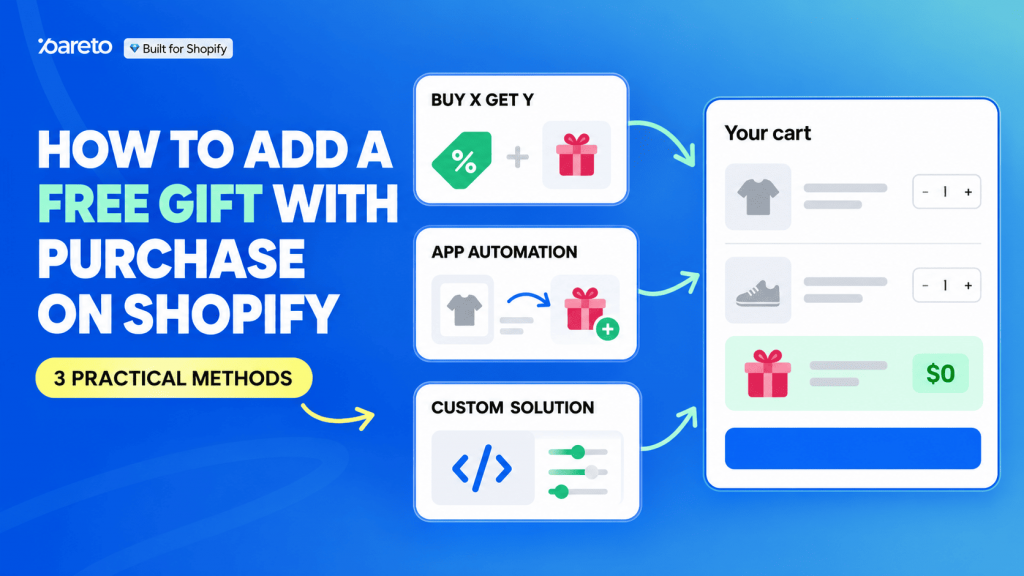
Trying to learn how to add free gift with purchase on Shopify? A free gift can make an order feel more valuable without cutting the product price too hard. But the right setup depends on how the gift should work. Some stores only need Shopify’s native Buy X Get Y discount, where customers add the gift to cart themselves. Others need a gift app that can show gift choices, add the item automatically, or display a cart progress bar. Larger stores may need custom code for more control. This guide walks through each method, explains the limits, and helps choose the best way to run a free gift with purchase Shopify offer without confusing customers or hurting margin.
How to Add Free Gift With Purchase on Shopify?
How to add free gifts with purchase on Shopify? Here is a short answer: use Shopify’s native Buy X Get Y discount.
This can make the gift price become $0, but it does not add the gift to the cart for the customer. The customer still needs to add the main product and the gift item to the cart. Then Shopify applies the discount and makes the gift free.
This is an important difference. In Shopify, an “automatic discount” means the discount applies without a code. It does not mean the gift is added automatically.
If you want the gift to appear in the cart by itself, use a Shopify gift app with auto-add. An app is also better if customers can choose their gift, if you have several gift tiers, or if you want to show a cart progress message.
Custom code is another option, but it is best for stores with special rules and developer support.
| What the campaign needs | Best starting point |
|---|---|
| One simple gift and no app cost | Native Shopify Buy X Get Y |
| Automatic gift, gift choice, progress bar, or advanced targeting | A free gift app |
| Store-specific logic that an app cannot support | Custom development |
What is a free gift with purchase?
A free gift with purchase, or GWP (Gift With Purchase), gives the customer a product at no charge. The cart must first meet a condition. That condition may be a minimum spend, a product quantity, or the purchase of a specific item or collection.
For example, a skin care store might offer a free travel-size cleanser when a customer spends $75. A tea store could give away a measuring spoon with any starter set. The gift has a normal product record and inventory, but an eligible cart receives a 100% discount on it.
This is different from setting the product’s regular price to $0. A zero-priced public product can be added by shoppers who do not meet the promotion rules. A gift campaign keeps the normal price and only discounts the item when the cart qualifies.
Free products can also feel more valuable than a small price cut. Research on the zero-price effect found that people do not always judge a free item through ordinary cost-and-benefit logic.
That does not guarantee better sales. It does help explain why a relevant gift can attract attention without cutting the main product’s listed price.
Free gift with purchase Shopify: How to set up?
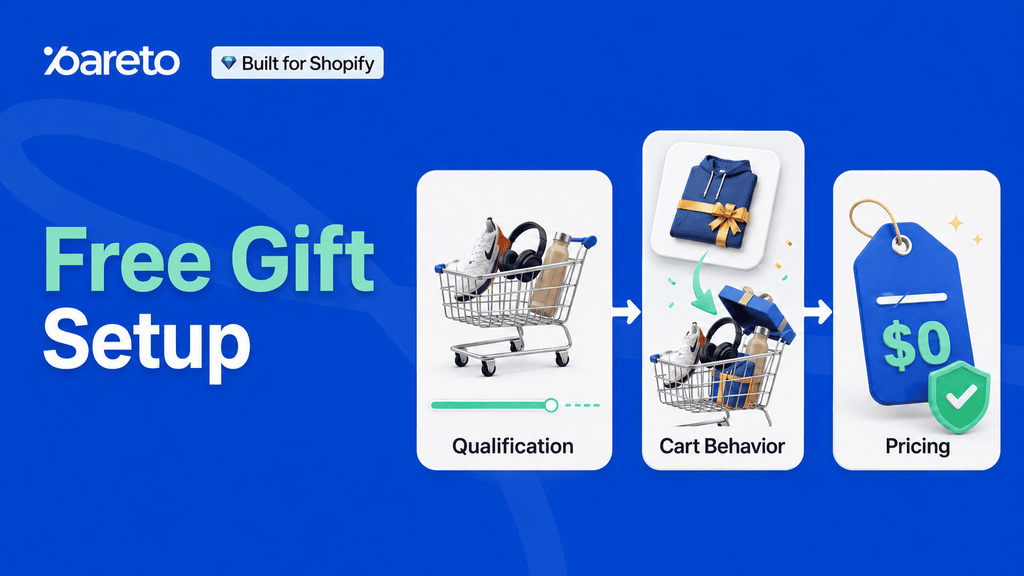
The right method depends on 3 separate jobs:
- Qualification: What must the customer buy or spend?
- Cart behavior: Does the customer add the gift, does the store add it, or can the customer choose?
- Pricing: What makes the gift free and prevents an unqualified cart from keeping the discount?
Native Shopify handles qualification and pricing for a basic offer. It leaves the cart behavior to the shopper. Apps can manage all three jobs in one campaign.
Custom development gives more control, but the store also owns the maintenance.
Method 1: How to add a free gift with Shopify’s native discount
Shopify’s built-in route is a Buy X Get Y automatic discount. It works well for a small campaign when the store can clearly direct customers to the gift product.
Step 1: Create or prepare the gift product
In Shopify admin, go to Products and open the product that will become the gift. Create a separate product or variant if the gift needs its own SKU, inventory, cost, weight, or fulfillment process.
Keep a normal price on the product. Turn on inventory tracking and enter the available quantity. If the gift reaches zero stock, Shopify marks it sold out.
Customers then cannot use the offer, according to Shopify’s Buy X Get Y guidance.
The item also needs to be available on the sales channel where customers will claim it. The native method requires shoppers to add the gift. They must be able to find or open its product page.
Step 2: Create the Buy X Get Y discount
Go to Discounts, click Create discount, and select Buy X get Y. Under Method, select Automatic discount and give the offer a clear internal title.
An automatic method removes the need for a coupon code. The customer still has to add the gift, but Shopify applies the free price after the cart meets the rules.
Step 3: Define what the customer must buy
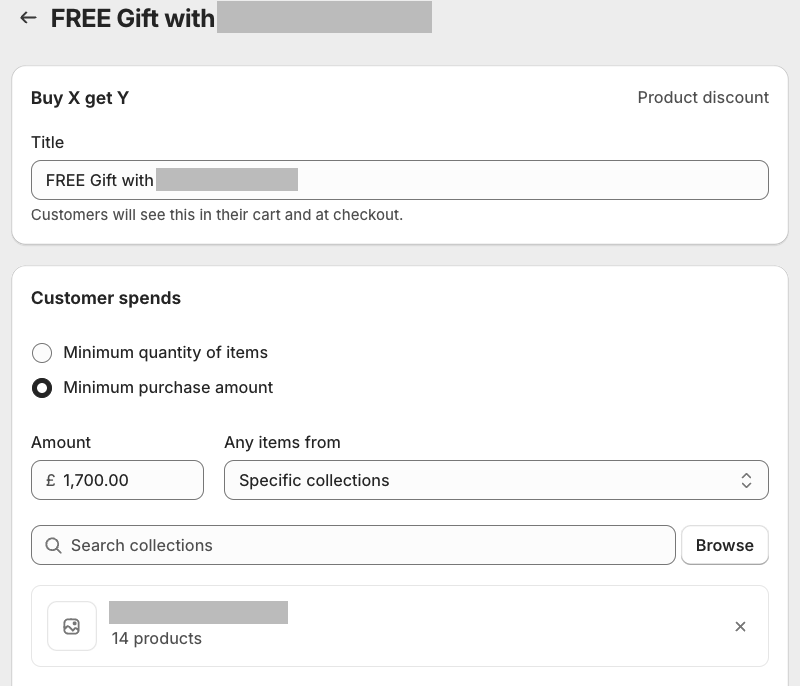
In Customer buys, choose one of Shopify’s two conditions:
- Minimum quantity of items, such as three products from a selected collection.
- Minimum purchase amount, such as $75 spent on products from a selected collection.
Then select the qualifying products or collections. Shopify’s native setup requires a specific product or collection scope. For a broad spend threshold, create a collection containing all eligible products.
Leave the gift, exclusions, and low-margin items outside it.
Check the scope carefully. If the promotion says “spend $75 across the store,” but only one collection counts, the storefront message must say so.
Step 4: Define the free gift
In Customer gets, set the quantity to one and select the gift product or collection. Under At a discounted value, choose Free.
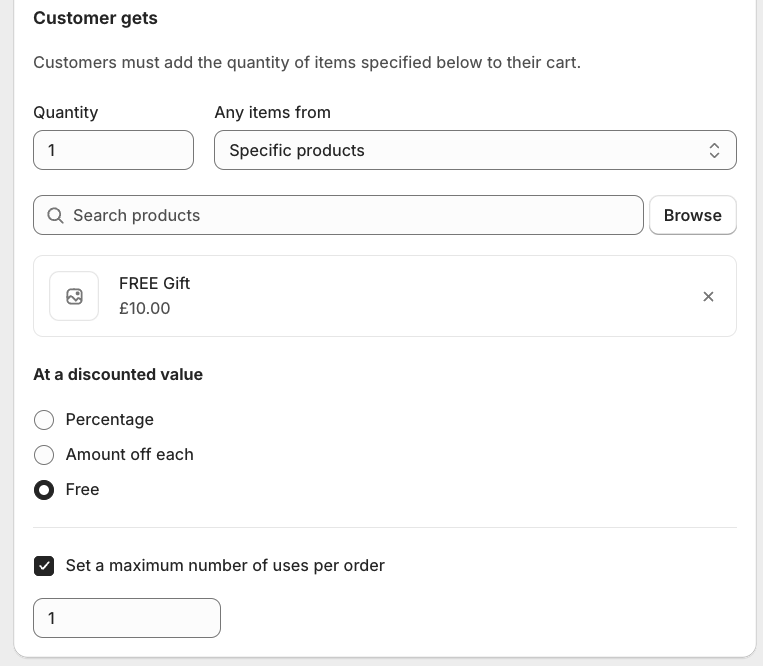
Turn on Set the maximum number of uses per order and enter one. Use a higher number only when the campaign should award several gifts. Without a cap, a large cart may qualify more than once.
If the customer can pick any product from a gift collection, remember that Shopify does not show a choice popup. The shopper must visit the collection, choose the item, and add it.
Step 5: Set eligibility, combinations, and dates
Choose whether the offer applies to all customers, specific customers, customer segments, or selected markets. Set the start date and, for a limited campaign, an end date. Shopify uses the store’s configured time zone for activation.
Review Combinations before saving. Discounts only combine when the relevant settings allow them. Shopify also applies special rules to Buy X Get Y items.
On non-Plus plans, products in a Buy X Get Y promotion cannot receive another product discount. If two discounts conflict, Shopify applies the better value for the customer. The current details are in Shopify’s discount combination rules.
Step 6: Tell customers how to claim the gift
The native offer will not promote itself. Add a clear message to an announcement bar, product page, collection page, or cart. Include the threshold, the gift, the eligible products, and the end date.
A useful message is direct: “Spend $75 on skin care and add the Travel Cleanser to your cart free.” Link the gift name to its product page. Avoid writing “gift automatically added” because native Shopify does not do that.
Step 7: Test the full path
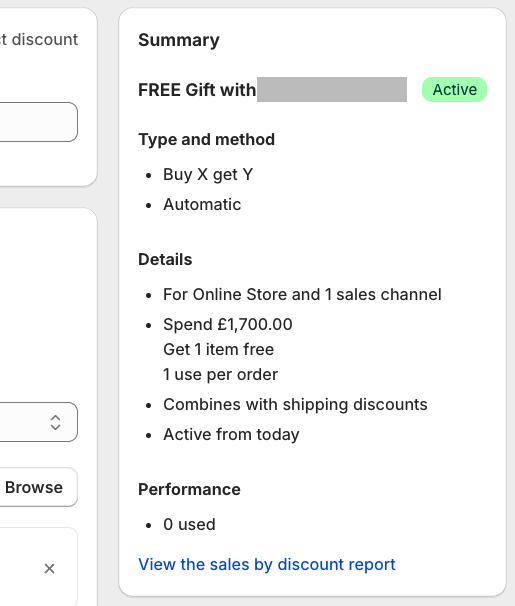
Open the storefront in a private browser window. Add a cart below the threshold, at the threshold, and above it. Add the gift manually and confirm that its price becomes zero only when the cart qualifies.
Also remove a qualifying item and check that the gift returns to its normal price. Test another active discount, a different market, a mobile cart, and the checkout. A saved rule is not ready until the customer path works from the first message through payment.
What native Shopify can and cannot do
The native option is useful, but its limits shape the customer experience.
It can:
- Trigger the promotion by quantity or purchase amount.
- Use selected products or collections for the qualifying purchase.
- Make a selected gift product free.
- Limit the number of uses per order.
- Target customers, customer segments, or markets.
- Schedule start and end dates.
- Combine with eligible order or shipping discounts when configured.
It cannot:
- Add the gift to the cart automatically.
- Show a built-in gift selection popup.
- Show a native progress bar toward the gift.
- Offer both a discount and a free gift for the same qualifying product (Product X) within a single native Buy X Get Y promotion.
- Apply an admin-created Buy X Get Y discount to the post-purchase page.
Shopify currently allows up to 25 active automatic discounts, including app-based automatic discounts. Stores with several campaigns should remove or pause old rules instead of leaving unused offers active.
Method 2: Use a free gift app for auto-add and gift choice
An app closes the main gap in the native flow: it can act when the cart qualifies. It may add a fixed gift or let the shopper choose. Some apps also remove the gift if the cart falls below the threshold and show progress before qualification.
Before installing one, check the features against the actual campaign. Look for:
- Rules based on cart value, item quantity, products, variants, or collections.
- Automatic gift addition and removal.
- A gift-choice popup that lets shoppers choose from multiple eligible gifts.
- The option to automatically offer the lowest-priced product from the qualifying Buy X product list as a free gift.
- A one-gift-per-order cap and protection against duplicate gifts.
- Inventory handling when a gift sells out.
- Customer, market, and product exclusions.
- Scheduling and time-zone controls.
- Cart drawer, mobile theme, checkout, subscription, and POS compatibility where relevant.
- Support for the store’s existing discount combinations.
- Reporting for redemptions, AOV, revenue, and campaign conversion.
Example, set up a gift campaign with Pareto
Pareto Quantity Breaks supports free gifts alongside Buy X Get Y, cart discounts, bundles, and other promotion types. The correct setup path depends on the trigger.
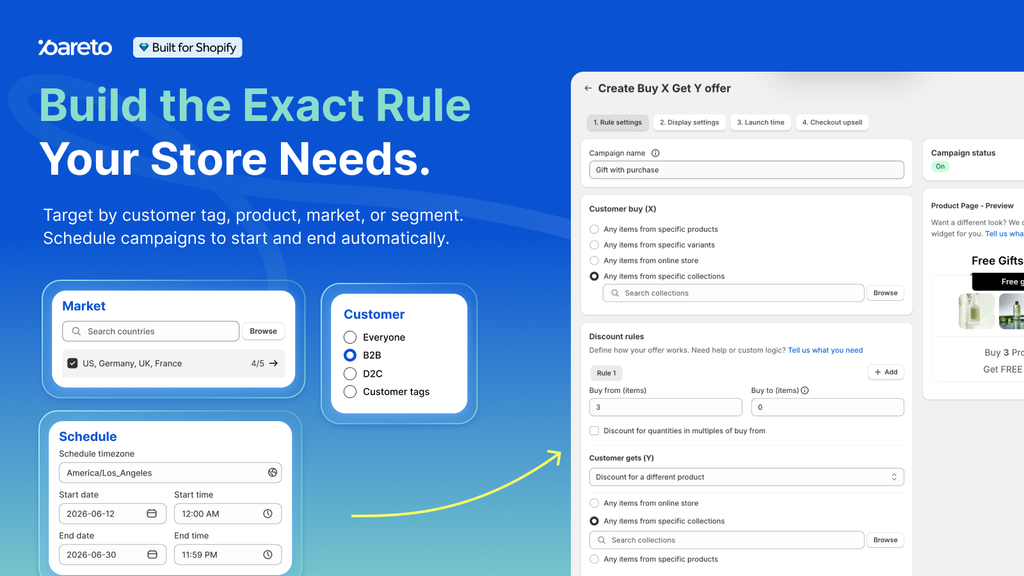
For a spend or cart-quantity gift, open Offers, add an offer, and choose Cart Discount. Pareto’s Cart Discount settings include a Free gift with purchase template. Select the products that count, choose a quantity or purchase-amount condition, and set the reward to a free gift.
Then configure any exclusions, customer targeting, markets, and campaign dates. Add a product-page message or cart progress bar in the display settings. Shoppers can then see the offer and their progress toward it.
For a product- or collection-triggered gift, create a Buy X Get Y offer. Define X as the qualifying product, variant, collection, or online-store item. Define Y as the gift, set its discounted quantity, and choose Free.
Pareto’s Buy X Get Y display settings provide three cart behaviors:
- Automatically add the discounted product without a popup.
- Show a suggestion popup so the customer can select the gift.
- Show no suggestion.
The same campaign can show a “buy more” notice before qualification. After the cart qualifies, it can display a gift notice. The discount may be valid, but customers still need to see what they earned and what to do next.
Save the campaign as a draft first. Enable the required app embed or theme block, then preview the storefront. Run the same below-threshold, at-threshold, and above-threshold tests used for a native discount.
Do not run 2 gift engines for 1 offer
A theme script, cart app, and discount app can all react to the same cart change. If two tools add the same gift, customers may receive duplicates or see the cart refresh in a loop.
Choose one system to own each campaign. If another app only displays a progress bar, make sure its reward action is disabled. Keep the pricing rule and cart behavior connected to the same eligibility logic whenever possible.
Method 3: Build a custom free gift workflow
For example, a store may need a gift rule based on customer tags, private catalogs, subscription status, or internal inventory logic. In that case, custom code can give more control.
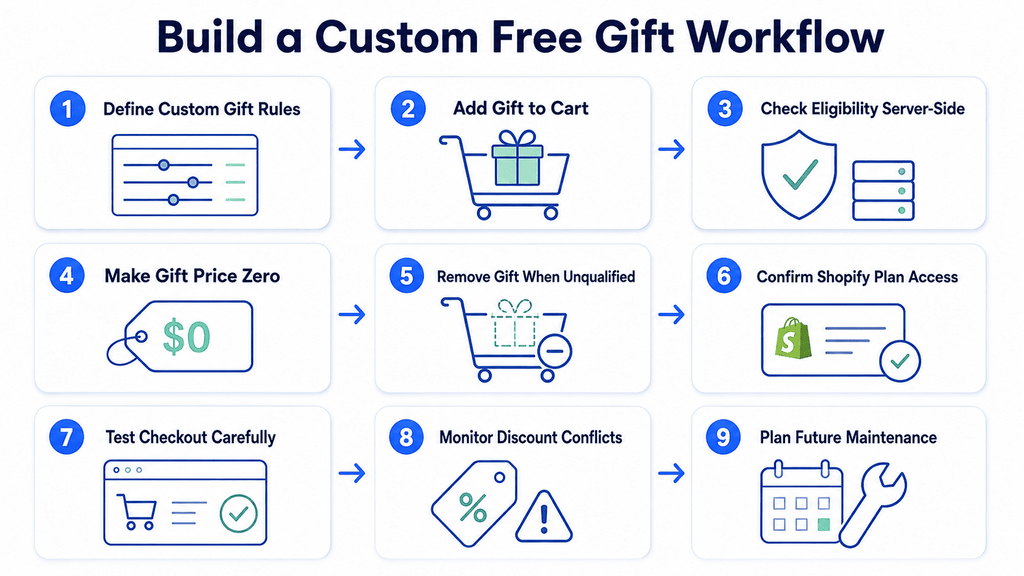
But a good custom setup is not just a few lines of theme code. The storefront can use Shopify’s Ajax Cart API to add, update, or remove the gift in the cart. Then a server-side discount rule should check if the customer is truly eligible and make the correct gift free.
This part matters because front-end code alone is not safe enough. Customers may enter checkout in different ways, themes may change, and cart requests can be modified. The checkout rule should check the qualifying products or subtotal, the gift variant, and the allowed gift quantity.
Shopify plan access also matters. Public Shopify App Store apps that use Shopify Functions can work on any plan. But a custom app built only for one store may require Shopify Plus if it uses Function APIs. Some Function features may also need Shopify Plus.
So before paying for custom development, confirm the setup with your developer.
Custom code also needs ongoing care. Plan for theme updates, Shopify API changes, discount conflicts, testing, monitoring, and rollback. If an existing app already supports the gift rule, it is usually the easier and lower-maintenance choice.
Best practices to add free gift with purchase on shopify
Choose a gift and threshold without giving away margin
The gift should make the order more attractive without costing more than the extra profit it creates. Start with the unit economics, not the retail price printed on the gift page.
Include the gift’s landed cost, picking and packing, extra shipping weight, packaging, and payment costs. Add any app cost allocated to each redemption. Then estimate how much extra contribution the qualifying order produces.
Use this break-even formula:
Required extra revenue = total cost per redeemed gift ÷ contribution margin rate |
Suppose the gift costs $3 and adds $1 in packing expenses. At a 50% contribution margin, the cart needs $8 in added revenue to cover the $4 gift cost. Assume the current AOV is $60 and the threshold is $75.
The extra $15 produces $7.50 in contribution before the gift. After the $4 gift cost, $3.50 remains before other campaign costs.
This example is not a promise. It shows why copying another store’s threshold can fail. The right number depends on the store’s margin, normal basket, shipping brackets, and gift redemption rate.
A strong gift usually has four traits:
- Relevant: It complements the qualifying purchase.
- Low landed cost: Its real cost leaves room for profit.
- Useful: It does not feel like unwanted clearance stock.
- Easy to fulfill: It is light, available, and unlikely to create support questions.
Samples and travel sizes can introduce another product without adding much shipping weight. A fixed gift keeps operations simple. A choice of two or three gifts can feel more personal, but it adds inventory and variant logic.
Use a choice only when that control matters to the shopper.
Promote the gift before the customer qualifies
A gift hidden inside the discount engine cannot influence the cart. Shoppers need to see the offer while they can still act on it.
Place the message where the decision happens:
- An announcement bar for a storewide campaign.
- Product-page copy for product- or collection-specific offers.
- A cart drawer message showing the remaining spend or quantity.
- A progress bar that changes to a claim or confirmation state.
- Campaign email and ad copy that match the storefront terms.
Keep the wording consistent. State what counts toward the threshold and which gift is available. Explain whether the customer must add it.
Include the limit per order and the end date or “while supplies last” condition.
Avoid a silent surprise if the gift has variants, allergens, special handling, or meaningful shipping weight. Let the customer choose or decline it. A gift should reduce friction, not create a new decision at checkout.
Test the campaign before launch
Run a complete test matrix rather than checking one successful cart.
- Threshold: Test one cent or one item below, exactly at, and above the rule.
- Removal: Drop the cart below the threshold and confirm the gift is removed or repriced.
- Quantity: Try adding two gifts and confirm the cap works.
- Inventory: Test low stock and an out-of-stock gift.
- Discounts: Apply every code or automatic offer likely to overlap.
- Surfaces: Test the full cart, cart drawer, mobile, accelerated checkout, and normal checkout.
- Eligibility: Test logged-out and logged-in customers, selected markets, and excluded products.
- Operations: Confirm the gift SKU, weight, tax treatment, pick list, packing slip, and return instructions.
Repeat the most important tests after a theme update or app change. Also prepare a simple rollback. Pause the campaign, remove its message, and confirm that the gift no longer receives a discount.
Measure whether the free gift pays for itself
Revenue alone does not show whether the campaign worked. Track the cost of every redeemed gift and compare it with the extra value created.
Useful measures include:
- Offer qualification and gift claim rate.
- AOV for orders with the offer versus a suitable baseline.
- Conversion rate before and during the campaign.
- Extra revenue linked to the offer.
- Gift, fulfillment, and shipping cost per redeemed order.
- Gross profit per order after the gift cost.
- Return, cancellation, and support-contact rate.
One simple efficiency question is: For every $1 spent on the gift, how much extra revenue came back? Calculate it as incremental campaign revenue divided by total gift and gift-fulfillment cost. Pair that figure with incremental gross profit, because a strong revenue ratio can still hide weak margins.
Use an A/B test when the store has enough traffic and the app supports it. Otherwise, compare similar periods. Account for changes in traffic source, product mix, seasonality, and other promotions.
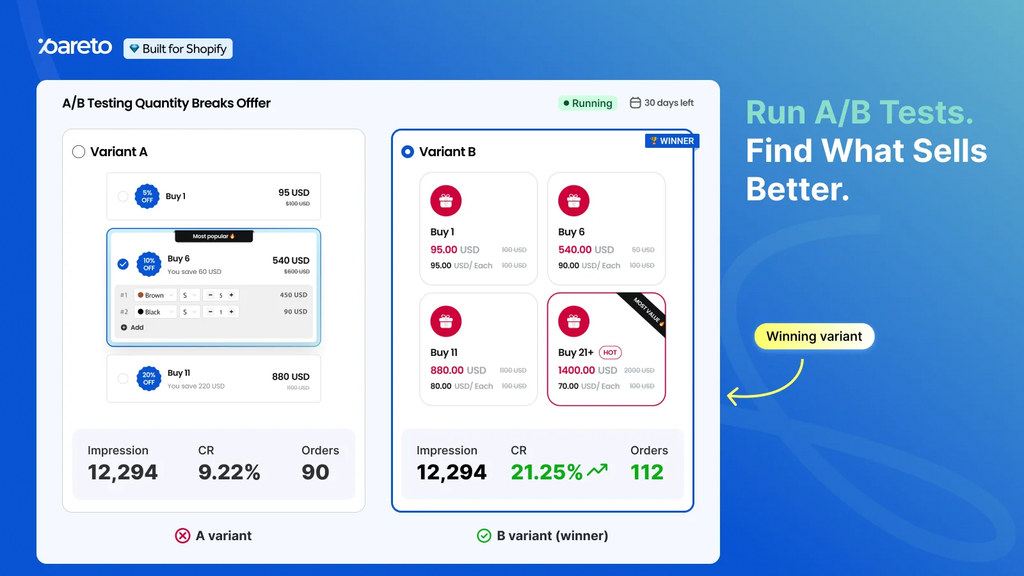
Pareto’s Statistics page reports AOV lift, offer conversion rate, and extra revenue from offer-influenced orders. These metrics can provide a starting point for the review.
Conclusion
For merchants asking how to add free gift with purchase on Shopify, start with native Buy X Get Y. It can run as an automatic discount. It costs nothing extra, but the shopper must still find and add the gift. Whichever route you choose, the promotion still needs a relevant gift and a profitable threshold. It also needs clear copy, controlled inventory, and a full cart-to-checkout test. With those parts in place, the gift becomes a measurable purchase incentive instead of a hidden discount rule.