
Show Quantity Breaks in Shopify Cart & Drawer | Pareto AOV
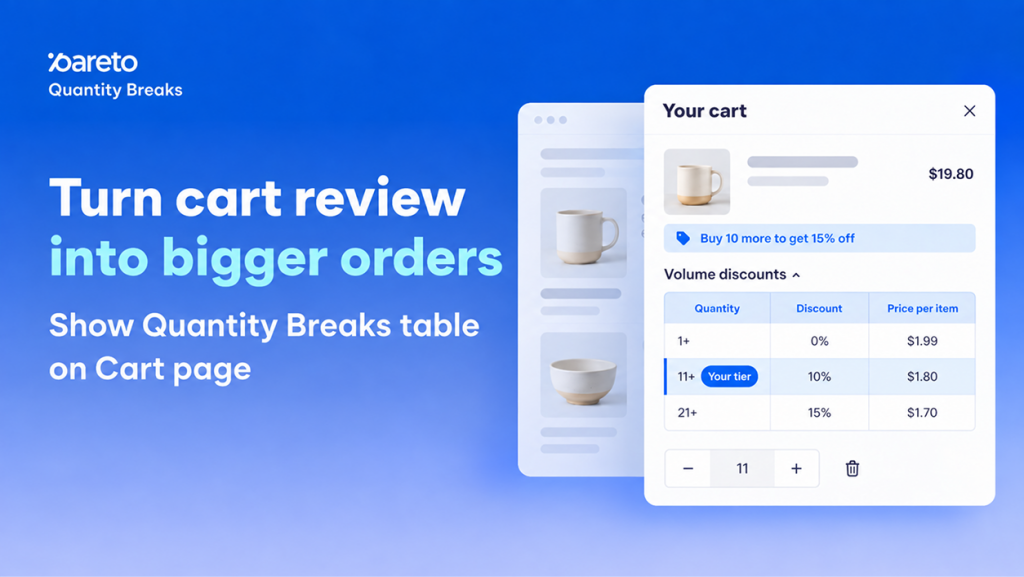
Getting a shopper to add an item to their cart is half the battle. But once they reach the cart, standard e-commerce flows treat the page as a finish line rather than an opportunity to expand basket size. When volume pricing tiers live exclusively on the product detail page (PDP), customers who want to see if adding one or two more units will save them money are forced to abandon the cart, navigate backward, and recalculate their totals manually.
Every extra click introduces friction, distraction, and cart abandonment risk. With the latest update to Pareto Quantity Breaks, merchants can now surface their complete volume discount tables directly within the cart page and slide-out cart drawer. Shoppers can clearly see their current discount level, discover the next tier, and adjust quantities right at the point of decision – without ever leaving the checkout funnel.
Volume Discount Tables Now Display Inside the Cart Page and Cart Drawer
Instead of restricting tiered pricing tables to product pages, this release brings complete volume pricing transparency to your final pre-checkout steps. Every cart line item associated with an active quantity break campaign can now display an interactive breakdown of available volume incentives.
- In-Cart Volume Pricing Display: Every eligible line item features a dedicated “Volume discounts” trigger directly below the product title.
- Dual Placement Support: The feature functions seamlessly across both dedicated cart pages (
/cart) and dynamic AJAX cart drawers. - Zero Theme Code Required: Activates instantly across standard Shopify themes without manual Liquid edits or custom script injections.
- Available Across All Plans: Full access is available to all Pareto merchants, including stores on the Free plan.
Why In-Cart Tier Visibility Drives Higher Average Order Value (AOV)
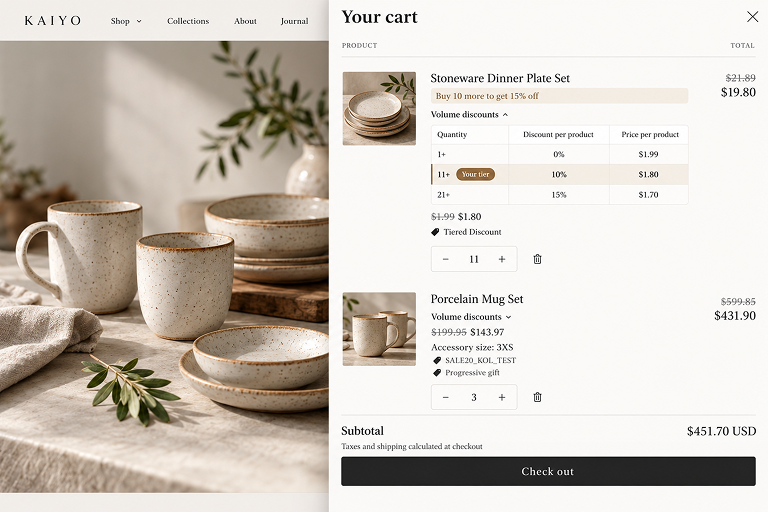
The moment a customer opens their cart represents peak purchase intent, making it the most critical time to present clear incentives to buy more. When volume discount thresholds are invisible in the cart, merchants miss high-intent upsell moments simply because shoppers do not know how close they are to the next savings tier.
- Frictionless Basket Building: Shoppers no longer have to navigate back to the product page to check whether increasing from 2 to 3 units triggers a discount. Eliminating this loop keeps buyers focused on finishing their purchase.
- Visual Progress Tracking: By marking the buyer’s achieved level as “Your tier,” the cart table provides clear visual confirmation of existing savings while framing the next tier as an easily attainable upgrade.
- Higher Cart Density Before Checkout: Giving shoppers a simple way to evaluate unit cost reductions at the subtotal level encourages spontaneous quantity increases, directly boosting storewide Average Order Value (AOV).
How Shoppers Experience Dynamic Tier Updates at Checkout
The in-cart discount table is designed to adapt smoothly to different store layouts, responsive screens, and real-time cart adjustments. Whether your theme relies on a full-page cart or a slide-out drawer, the customer experience remains clear and intuitive.
Shoppers interact with two display states depending on your store settings:
- Click to Expand vs. Always Show: In “Click to expand” mode, customers click the notification prompt below the product name to open the tier breakdown cleanly underneath the item. Alternatively, selecting “Always show” keeps the table visible at all times.
- Mobile-Responsive Enlarge Button: In tight layout areas – such as narrow mobile viewports or compact slide-out drawers – an enlarge icon allows shoppers to open the full table in a dedicated modal overlay complete with product title, selected variant, and current quantity.
- Real-Time Tier Highlighting: When a customer updates the quantity selector (
+/-) inside the cart, the table recalculates instantly. The highlighted badge shifts in real time to match the new quantity bracket and updated savings.
Step-by-Step: Enabling and Customizing In-Cart Quantity Breaks
Activating and styling the in-cart volume table takes just a few clicks within the Pareto app dashboard. You can customize table content, modify displayed columns, and match colors to your brand identity before publishing changes.
Follow these steps to configure the feature in your Shopify admin:
Setting up volume pricing in your cart takes less than two minutes directly inside the Pareto dashboard. You can launch with default settings immediately or fine-tune the display to match your theme.
Quick Setup (3 Steps)
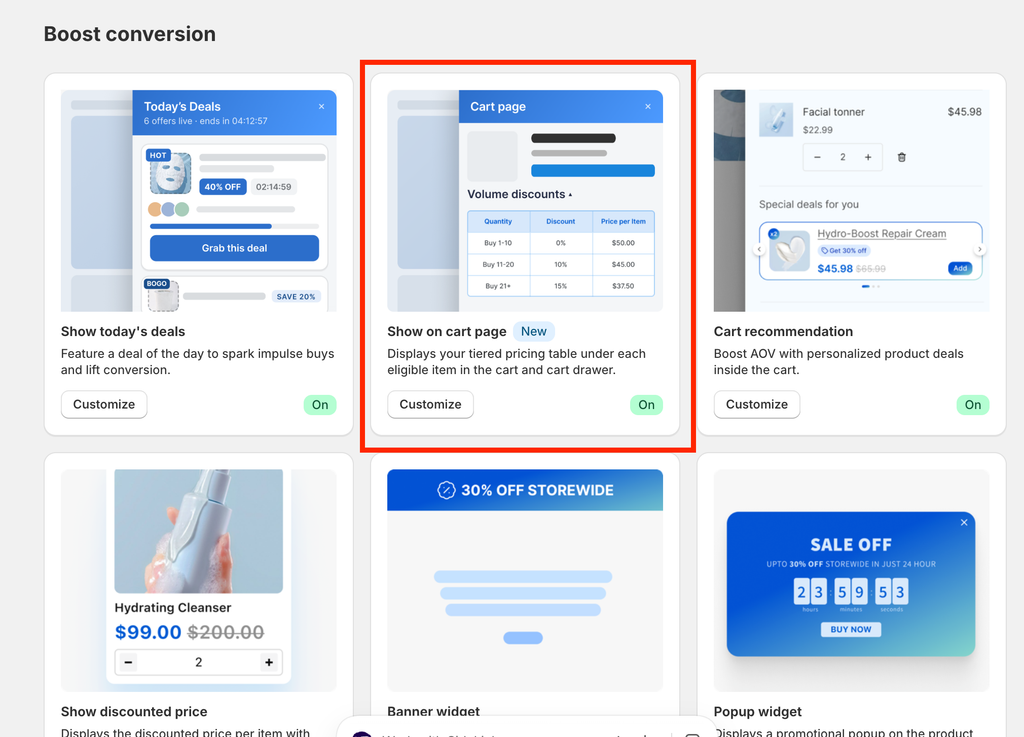
- Open the Feature: In the Pareto app, navigate to Boost conversion → locate Show on cart page → click Customize.
- Enable Display: Check Show discount on cart page.
- Preview & Save: Confirm how it looks in the Cart page preview on the right, then click Save.
Customizing Display & Styling (Optional)
Once enabled, you can adjust how and when the table appears:
- Display Behavior: Choose Click to expand (shoppers click the trigger text to open) or Always show.
- Tier Badge: Keep Highlight current tier enabled to spotlight reached savings. You can edit the text label (default: “Your tier”) or clear it to show only color highlighting.
- Columns & Dynamic Values: In the Table content card, toggle which columns to display (Quantity, Discount per product, Price per product, or Total Amount). Use the
{...}button to insert dynamic values like tier quantities or prices. - Branding & Layout: Under Table style, choose a preset layout (Classic, Zebra, or Header), and customize corner radius, font sizes, text colors, and active tier highlight colors.
Critical Rules, Campaign Eligibility, and Pricing Behaviors
To ensure smooth operation alongside your other promotional strategies, keep these essential technical behaviors and campaign boundaries in mind when planning your cart setup.
- Campaign Type Scope: The in-cart table applies strictly to tiered pricing set up through Quantity Break campaigns. It does not render on Buy X Get Y (BXGY), Standard Bundles, Build Your Own Bundle (BYOB), Order-level discounts, free gift items, or bundled line items.
- Targeting and Scheduling Parity: Customers will only see the table for campaigns they are actively eligible for, honoring your existing customer targeting, start/end schedules, and exclusion rules configured for cart notices.
- Price Calculation Consistency: Cart table calculations use the exact same calculation logic as the collection page table. As a result, unit rates may vary slightly from product page widgets if your product pages display tax-inclusive pricing or compare-at price baselines.
- Independent Page Controls: Cart page display settings operate completely independently from your “Show on collection page” configuration; updating one will not overwrite the other.
- Custom Theme Selectors: If your theme uses an unconventional DOM structure or heavily customized cart drawer where the table does not appear automatically, reach out to Pareto support. Our team will map a custom cart selector directly to your theme files.
Activate In-Cart Volume Discounts Today
The in-cart volume pricing table is now live and ready to use in your Pareto dashboard on all subscription plans.
Ready to inspect your setup or need assistance dialing in your theme styling? Contact our support team via live chat or reply directly to our team announcements for hands-on configuration assistance.