
Shopify Automatic Discount: Smart Ways To Upsell
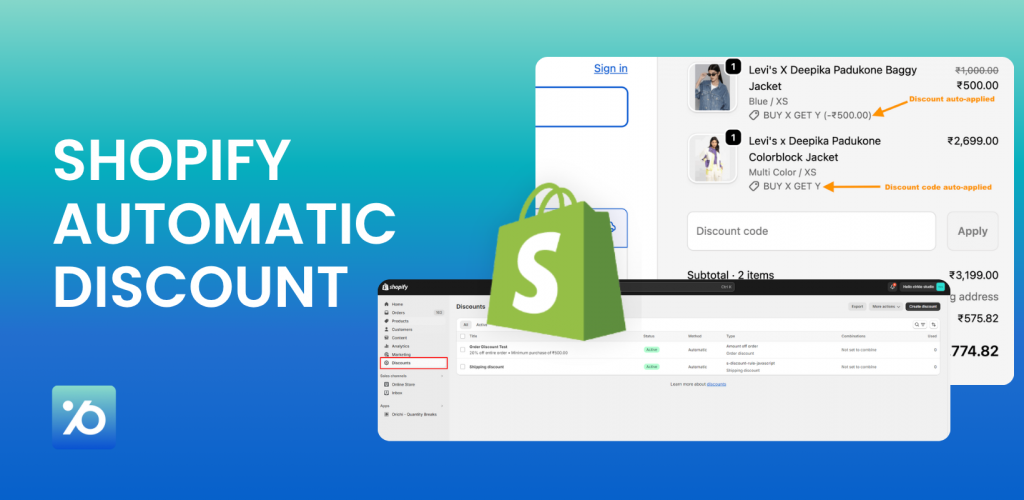
A Shopify automatic discount applies automatically when a customer meets the conditions you set, so no code entry is needed. Shopify supports percentage or fixed discounts, free shipping, Buy X Get Y, and app-based offers. If you want to auto-apply a specific code like WELCOME10, use a shareable discount link instead. This guide explains both methods, stacking rules, limits, apps, and common fixes.
What Is a Shopify Automatic Discount?
A Shopify automatic discount is a promotion that applies when an eligible customer or cart meets the conditions set by the merchant. Customers don’t need to enter a coupon code.
For example, a store could create an offer that gives customers 10% off when they spend at least $100. Once an eligible cart reaches $100, Shopify can apply the discount automatically.
Shopify supports several common automatic discount types:
- Percentage discounts
- Fixed amount discounts
- Free shipping
- Buy X Get Y offers
- App-based automatic discounts
Shopify currently allows up to 25 active automatic discounts, including app-based automatic discounts.
The main benefit is simple: customers don’t have to do anything extra to claim the offer.
That makes automatic discounts useful for storewide sales, minimum-spend offers, seasonal campaigns, free shipping thresholds, and other promotions where everyone who meets the conditions should receive the same deal.
Automatic Discount vs Discount Code vs Auto-Applied Code
These three methods sound similar, but they solve different problems.
| Method | How it works | Best for |
|---|---|---|
| Automatic discount | Shopify applies the offer when its conditions are met | Storewide sales, thresholds, BOGO, free shipping |
| Discount code | Customer enters a code manually | Coupons, controlled promotions, creator codes |
| Auto-applied discount code | A shareable link carries a discount code into the shopping journey | Email, SMS, ads, influencers, retargeting |
The key question is whether you need an actual discount code.
Suppose a store runs a 15% sale for every customer who spends $100. There’s little reason to make shoppers enter a code. An automatic discount keeps the process simple.
Now consider a campaign using SUMMER15. The merchant may want to track that specific code or send it only through certain channels. In that case, the code can stay in place while a shareable discount link applies it for the customer.
How to Set Up a Shopify Automatic Discount
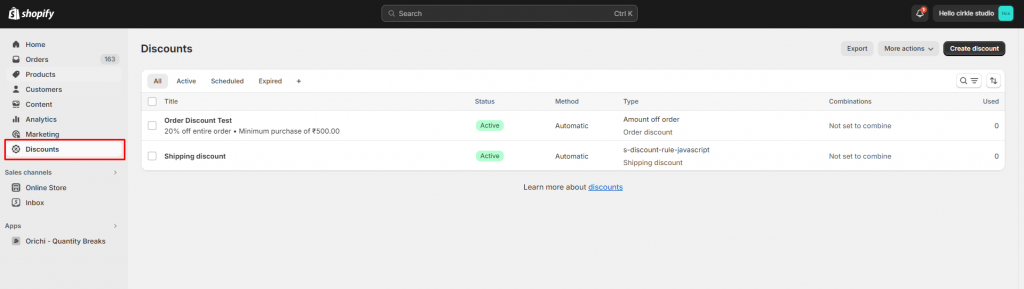
You can create standard automatic discounts directly from Shopify Admin. Start by going to Shopify Admin → Discounts → Create discount. From there, the exact settings depend on the type of promotion you want to run.
Create an Automatic Percentage or Fixed Discount
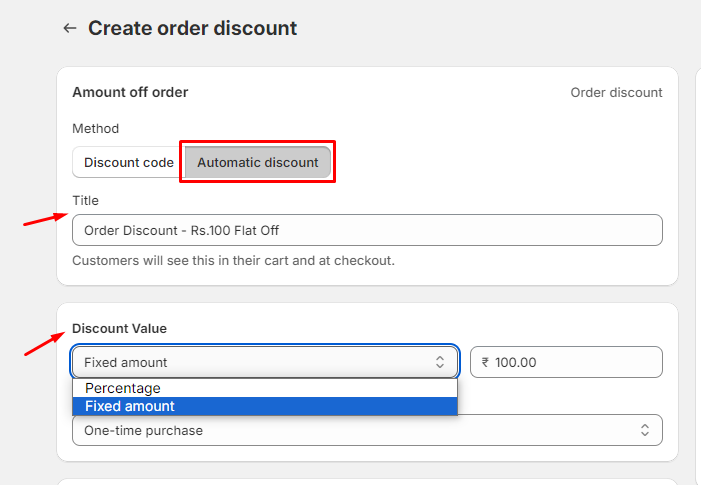
For a basic amount-off promotion:
- Go to Discounts in Shopify Admin.
- Click Create discount.
- Choose an amount-off product or order discount.
- Select Automatic discount as the method.
- Enter a title for the promotion.
- Choose a percentage or fixed amount.
- Select the products, collections, or order conditions that apply.
- Add a minimum purchase amount or quantity if needed.
- Set customer or market eligibility where available.
- Choose which other discounts it can combine with.
- Set the start and end dates.
- Review the settings and save the discount.
For example, a merchant could create:
15% off orders over $100
Customers who reach the $100 requirement receive the discount automatically. No code is needed.
This setup also works well for product-specific campaigns. Instead of discounting the whole order, the merchant can limit the promotion to selected products or collections.
Create an Automatic Free Shipping Discount
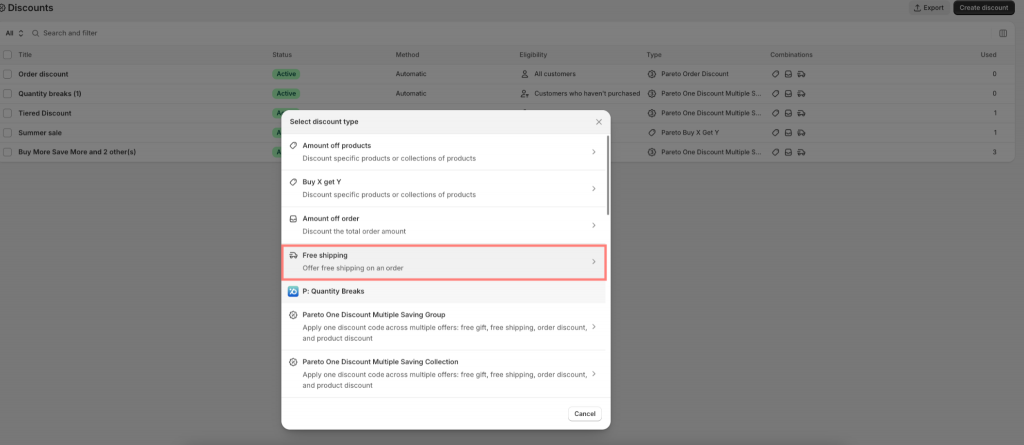
- Free shipping can also work as an automatic discount.
- Go to: Discounts → Create discount → Free shipping → Automatic discount
- Then set the conditions for the offer.
Depending on the promotion, you can configure details such as eligible countries or regions, minimum purchase requirements, customer eligibility, discount combinations, and campaign dates.
A common setup is:
Free shipping on orders over $75
Once an eligible order reaches the threshold, the shipping discount applies without asking the customer for a code.
This can be easier to promote than a general coupon because the condition is clear. Customers know exactly how much they need to spend to unlock the offer.
Create an Automatic Buy X Get Y Discount
Shopify also supports automatic Buy X Get Y promotions.
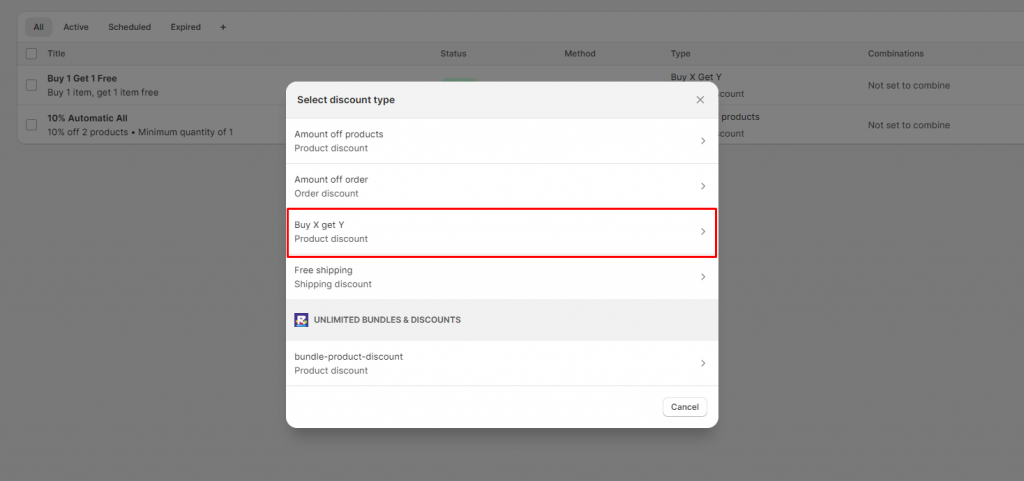
You can define:
- What customers need to buy
- The minimum quantity or purchase amount
- Which products or collections qualify as X
- Which products or collections qualify as Y
- How many Y items can receive the offer
- Whether Y is free or discounted
- Maximum uses per order
- Customer eligibility
- Combination settings
- Start and end dates
There is one important limitation: Shopify’s native Buy X Get Y discount does not automatically add the Y product to the cart.
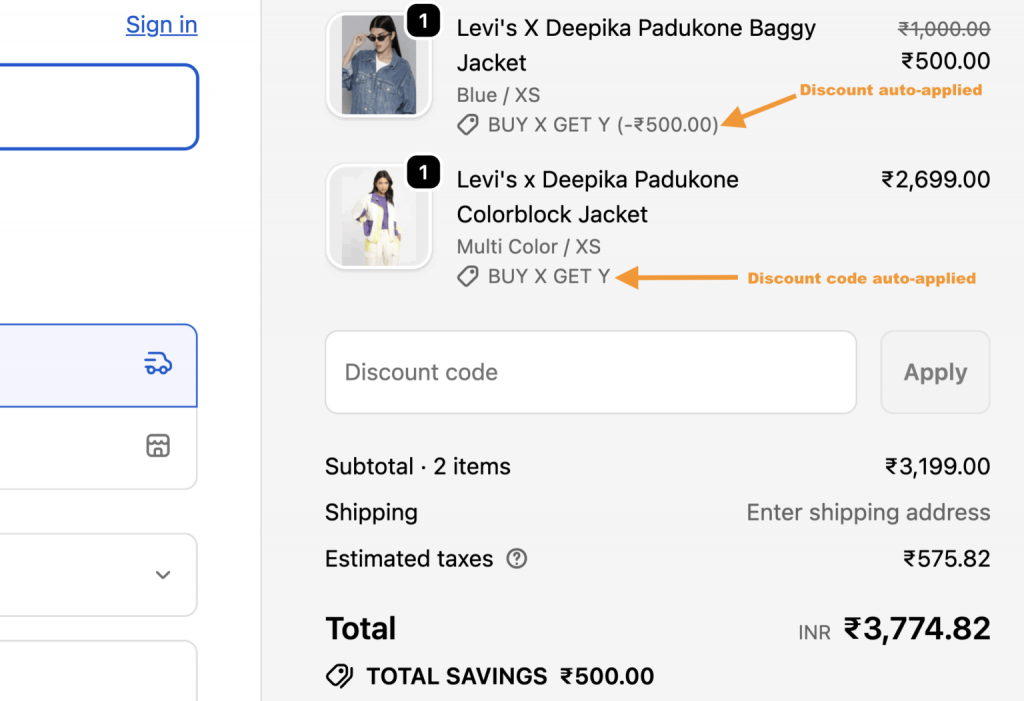
The customer has to add the qualifying products, including the Y item, to the cart. Shopify then applies the discount when the conditions are met.
For example, imagine this offer:
Buy one T-shirt and get one cap free.
Adding the T-shirt alone won’t make the cap suddenly appear in the cart. The customer still needs to add an eligible cap. Shopify then changes the price according to the promotion.
This distinction matters for free-gift campaigns. If the goal is to automatically add a gift once a customer reaches a threshold, an app or custom setup is usually needed.
How to Auto Apply a Discount Code on Shopify
The phrase Shopify auto apply discount code often causes confusion because it can sound like an automatic discount. But it isn’t quite the same thing.
An automatic discount has no coupon code for the customer to enter. An auto-applied discount code still uses a real code, but Shopify can pass that code through a shareable link.
This is useful when the code itself matters. For example, a store may want to use WELCOME10 in a welcome email. Instead of telling new customers to remember the code and enter it at checkout, the email can link directly to the store with WELCOME10 already attached to the shopping journey.
Use Shopify’s Shareable Discount Link
First, create the discount code normally and save it.
Then go to: Discounts → Select the discount → Promote → Get a shareable discount code
Shopify lets you copy the shareable link and choose where customers should land.
A link can lead shoppers to the store homepage, a product, a collection, or another relevant destination while carrying the discount.
Shopify also supports a redirect structure such as:
/discount/CODE?redirect=/desired-path
For example:
/discount/WELCOME10?redirect=/collections/new-arrivals
A customer clicking this link can land on the New Arrivals collection while WELCOME10 is carried into the checkout journey.
This approach works especially well for:
- Email campaigns
- SMS promotions
- Influencer campaigns
- Paid ads
- QR codes
- Welcome offers
- Abandoned-cart campaigns
- Win-back campaigns
It removes the need to tell customers to “copy this code and enter it at checkout.”
One shareable discount link carries one code. However, that code may still combine with other eligible discounts if the combination settings allow it.
When Should You Use an Automatic Discount Instead?
Use a Shopify automatic discount when the code itself doesn’t matter.
For example:Spend $100 and get 15% off automatically is usually easier to run as an automatic discount. On the other hand:Use WELCOME15 for 15% off may be better as a discount code if the merchant needs to distribute or track that specific promotion.
A simple rule helps:
- Conditions should trigger the offer? Use an automatic discount.
- A specific code or campaign should trigger it? Use a discount code or shareable discount link.
Shopify Automatic Discount Limits to Know
Shopify’s native discount tools cover many everyday promotions, but there are still limits.
First, a store can have up to 25 active automatic discounts, including app-based automatic discounts.
For discount codes, customers can use up to 5 product or order discount codes plus 1 shipping discount code on the same order. However, reaching that limit doesn’t mean every discount will stack. Each discount must allow the other discount’s class in its Combinations settings. In other words, combinability isn’t mutual by default – you need to check the settings on both discounts.
Customer targeting also differs between discount methods. An automatic discount can target up to five customer segments, while a discount code can target up to 100 segments. For campaigns that rely heavily on customer segmentation, this difference can affect which method makes more sense.
Buy X Get Y has the free-item limitation mentioned earlier: Shopify discounts the Y item, but it doesn’t automatically add that item to the cart.
Other situations also need extra attention.
Automatic discount behavior at Shopify POS can depend on the POS setup and plan. Draft orders have their own discount-code behavior. Subscription and post-purchase flows may also work differently from a standard Online Store checkout.
The safest approach is to test the promotion in the same buying flow customers will actually use instead of assuming that a discount working in one channel will behave the same everywhere.
When Do You Need a Shopify Auto Discount App?
Native Shopify is enough for many simple promotions.
If the goal is 10% off a collection, $20 off a qualifying order, free shipping above a threshold, or a standard Buy X Get Y offer, start with Shopify’s built-in discount tools.
An app like Pareto Quantity Breaks becomes more useful when the promotion needs more complex rules or a better storefront experience.
Common examples include:
- Automatically adding a free gift. Native Shopify can discount a qualifying gift, but it doesn’t automatically place the gift in the cart.
- Shipping discounts beyond free shipping. Reduce part of the shipping cost instead of making delivery completely free. For example, merchants can offer 30% or $5 off shipping, giving them more control over shipping incentives without covering the full delivery fee.
- Quantity and volume discounts. A merchant may want to offer 5% off three units, 10% off five units, and 15% off ten units.
- Tiered pricing. Wholesale and bulk-purchase offers may require several pricing levels rather than one simple threshold.
- More advanced BOGO offers. Promotions can involve specific products, collections, free gifts, or more detailed Buy X Get Y conditions. Also, can set repeating Buy X Get Y rewards that scale with the qualifying quantity. For example, one rule can reward 1 free item for every 1 qualifying item purchased, instead of creating separate Buy 1 Get 1, Buy 2 Get 2, and Buy 3 Get 3 offers.
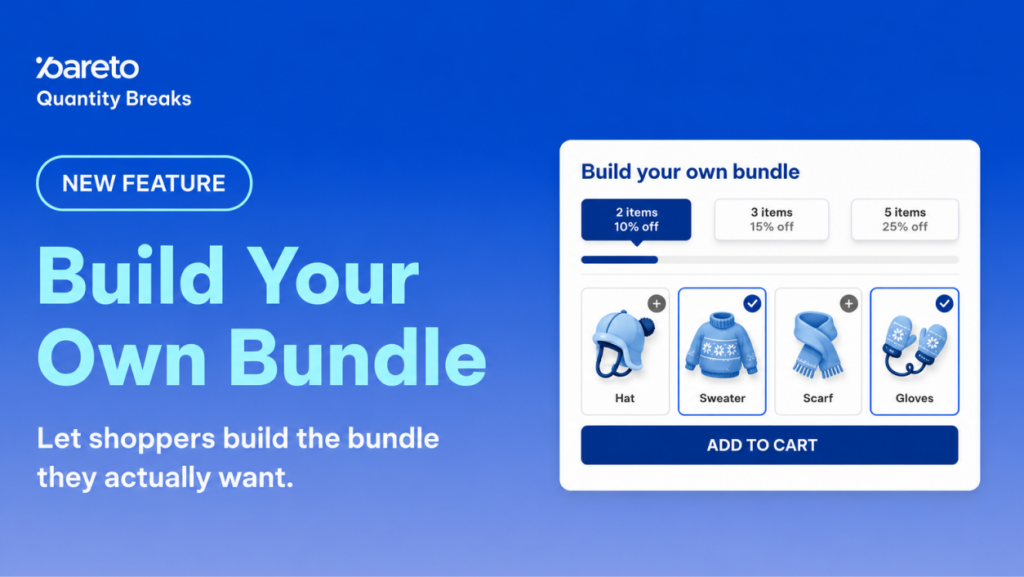
- Bundles. Stores want to group related products together and apply a special price or discount. And Pareto lets shoppers mix and match the products and variants they want into a discounted bundle. Instead of pre-building every possible combination as bundle variants, merchants can offer more flexible bundle choices—especially useful when Shopify Bundles’ 3-option and 100-variant limit becomes restrictive.
- More detailed targeting. Some campaigns need different rules based on customer groups, markets, products, or cart conditions.
- Order discounts with progress bars. Create cart or order-based discounts and show shoppers how close they are to the next reward directly on the product page or cart. For example, a progress message such as “Add $20 more to unlock 15% off” makes the offer easier to understand and gives shoppers a clear reason to increase their cart value.
- Better promotion visibility. Applying the discount is only half of the job. Customers also need to understand the offer before checkout. Apps can add product-page widgets, cart messages, progress bars, gift selectors, and other storefront elements.
For example, a store might want to show:
- Buy 3 → Save 10%
Buy 5 → Save 15%
Buy 10 → Save 20%
The discount needs to be calculated correctly, but the customer also needs to see those tiers while deciding how many items to buy.
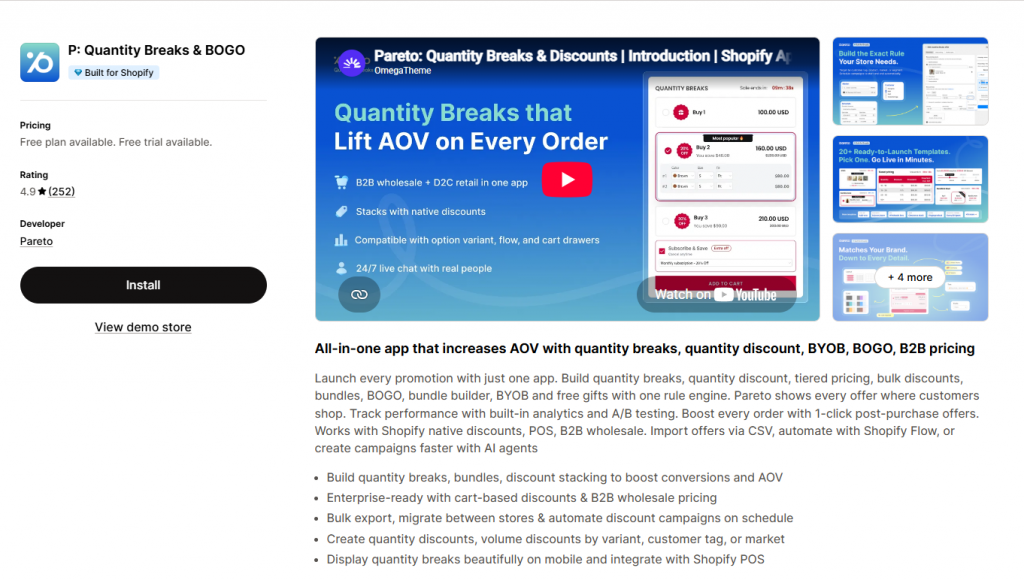
Pareto Quantity Breaks can extend Shopify’s promotion setup with options including quantity breaks, volume and tiered discounts, cart discounts, bundles, Buy X Get Y offers, free gifts, targeting, scheduling, and promotional widgets.
Our app can also cover cases where the native Buy X Get Y setup falls short, such as letting shoppers select a gift through a popup or automatically adding an eligible promotional product to the cart.
More automation rules across Shopify channels. Shopify limits stores to 25 active automatic discounts at a time, while Pareto supports unlimited automation discount rules. These rules use Shopify’s native discount infrastructure, so eligible offers can work across supported Shopify surfaces such as the Online Store, POS, Shop, and Shopify Catalog.
Easier rule migration and automation. Merchants can import or manage discount rules through CSV, Shopify Flow, Shopify Sidekick, or AI/MCP-based workflows. This makes it easier to migrate large rule sets and connect discount management with ERP or pricing systems. If prices or conditions change, rule updates can be automated instead of edited one by one.
The choice doesn’t need to start with an app, though. Start with the promotion rule itself. If Shopify can handle it cleanly, native discounts keep the setup simple. If the campaign needs more detailed logic or stronger on-site merchandising, then an app becomes worth considering.
Best Practices for Shopify Automatic Discounts
How much should the store take off?
A discount shouldn’t start with the question, “How much should the store take off?”
Start with the behavior the promotion needs to encourage.
If the goal is to increase order value, a minimum-spend offer may make more sense than giving every shopper the same discount.
Instead of: 15% off everything, the store could test: Spend $100 and get 15% off
The second offer gives customers a reason to reach a specific cart value.
The same thinking applies to quantity promotions. A store trying to sell more units per order can create increasing rewards as customers buy more.
Whatever the offer, make the rules easy to understand. If customers need $100 in their cart, tell them. If they need to add the free product themselves, say so. If certain products are excluded, make that clear before checkout.
Storefront messaging matters here.
A message such as: Add $12 more to unlock 15% off gives customers useful information while they’re still shopping.
That’s clearer than waiting until checkout to show whether a discount has been applied.
Plan Seasonal Discounts in Advance
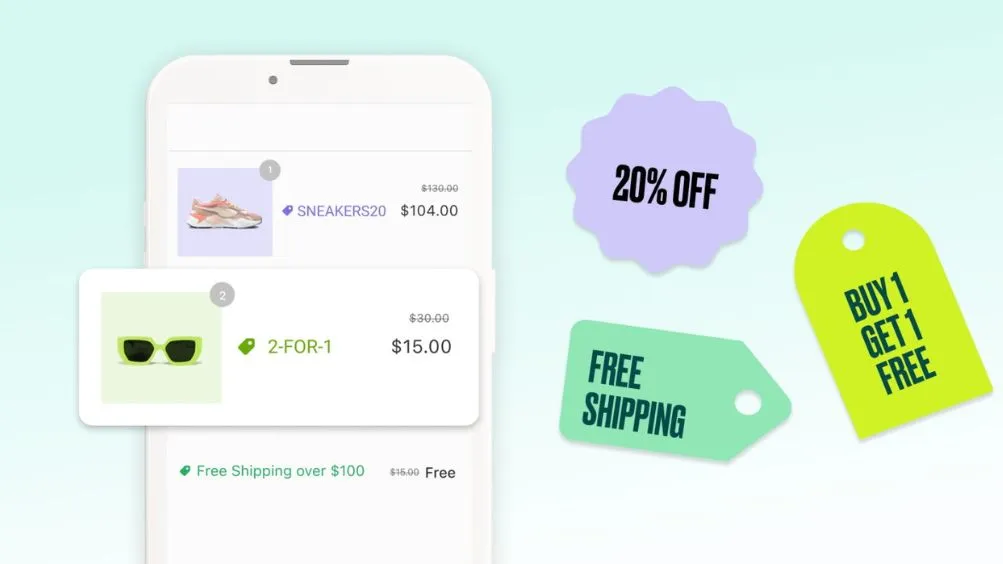
For Black Friday, Cyber Monday, product launches, and other time-sensitive campaigns, use start and end dates instead of relying on someone to manually switch a promotion on and off.
Pay attention to the store’s configured time zone when setting those dates.
Before launch, test:
- The minimum threshold
- Products and collections
- Customer eligibility
- Discount combinations
- Shipping destinations
- Mobile checkout
- Existing discount codes
- Gift inventory
- POS or subscription flows where relevant
Also test what happens just below the threshold.
If an offer starts at $100, check carts at $99 and $100. Small boundary tests often catch setup mistakes before customers do.
Measure More Than Discount Redemptions
A campaign can generate many discounted orders without actually improving the business result.
Useful metrics include:
- Conversion rate
- Average order value
- Net sales
- Total discount amount
- Gross margin
- Repeat purchase rate
Shopify’s Sales by discount codes report (under Analytics → Reports → Sales) groups orders by discount name, so it covers both automatic discounts and codes. For order-level detail, Finance reports include a Discounts by order report.
The goal is to understand whether the discount encouraged customers to buy more or simply reduced the price of purchases they would have made anyway.
Why Is My Shopify Automatic Discount Not Working?
When a Shopify automatic discount doesn’t apply, start with the basic conditions before changing the whole campaign.
Check the Cart Requirements
Make sure the cart actually meets the discount rules.
Check the minimum purchase amount or quantity, eligible products and collections, customer requirements, markets, and purchase type.
A $100 minimum discount won’t apply to a $99 cart. A collection-specific promotion won’t work if the cart only contains excluded products.
Check the Start and End Dates
Confirm that the promotion is active.
Also check the store’s time zone. A campaign scheduled around midnight can appear to start or end at the wrong time if the expected time zone doesn’t match the store settings.
Check Combination Settings
If two discounts work separately but not together, review the Combinations settings on both promotions.
One discount allowing another doesn’t automatically make the relationship mutual.
Check Buy X Get Y Products
If a customer qualifies for BOGO but no free product appears, the discount may be working exactly as Shopify designed it.
The customer still needs to add the Y item.
If the store needs the gift to appear automatically, use an app or custom cart logic designed for that behavior.
Check the Shareable Discount Link
If a Shopify auto apply discount code link doesn’t work, make sure the original code is saved, active, and valid for the customer’s cart.
Also test the link itself before adding it to an email, ad, QR code, or SMS campaign.
Test the Real Customer Journey
Don’t stop after checking Shopify Admin.
Add products to the cart, change quantities, cross the discount threshold, remove products, try another code, and move through checkout.
That shows what customers will actually experience.
Final Thoughts
A Shopify automatic discount works best when the offer is simple, clear, and easy for customers to claim. Before launching, check the rules, test the cart and checkout, and make sure the promotion is easy to understand in your store. If Shopify’s native tools can’t support the offer you have in mind, that’s the point to look at apps like Pareto Quantity Breaks & BOGO can extend Shopify’s promotion setup with advanced options.