
Shopify MOQ: How to Set Minimum Order Quantity
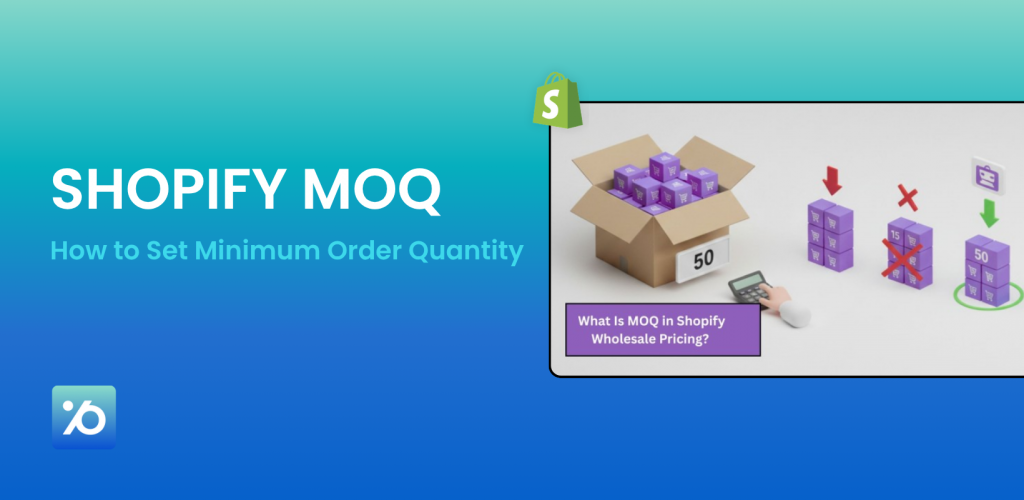
Shopify minimum order quantity – three things can happen when you search for this. You’re either trying to control how much you buy from a supplier, trying to stop customers from placing tiny, unprofitable orders, or you’re just trying to figure out what MOQ even means in a Shopify context.
This guide covers all three. By the end, you’ll know exactly what MOQ is, whether Shopify supports it natively, and how to set it up – whether you’re on a basic plan or Shopify Plus. Let’s start with the basics, then get into the actual setup steps.
What Is MOQ?
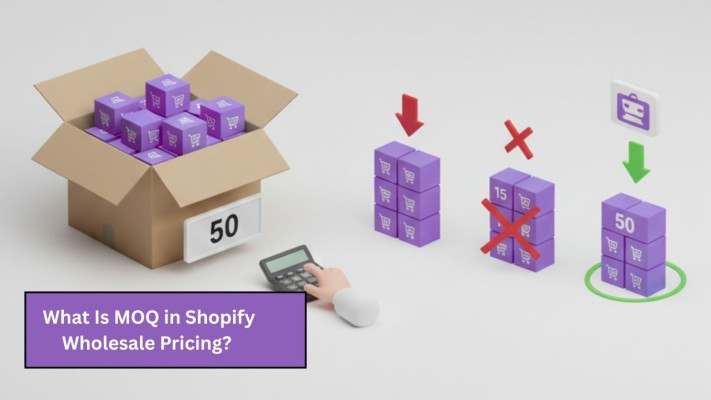
MOQ (minimum order quantity) is the smallest number of units that can be ordered in a single transaction.
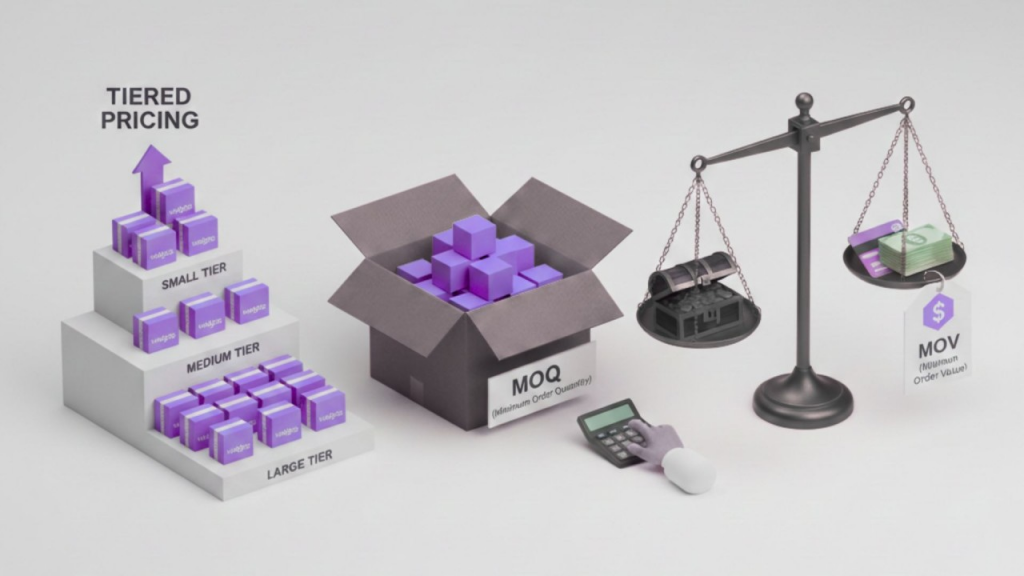
In a Shopify context, it means setting a rule that requires customers to buy a minimum number of units before they can check out – for example, requiring orders of at least 6 or 12 units per product.
But here’s where it gets confusing: MOQ means two different things depending on who you’re talking to.
- Supplier MOQ is the minimum you must buy from a supplier. For example, a manufacturer might require you to order at least 500 units before they’ll fulfill your request. This is a supply chain concept – it affects your purchasing, not your store.
- Storefront MOQ is the minimum a customer must buy from your store. For example, you might only sell products in packs of 12 and want to block orders for fewer units.
Most people searching “how to set MOQ in Shopify” are thinking about the second type – enforcing a purchase minimum for their customers. That’s what this guide focuses on.
Does Shopify Have a Built-In MOQ Setting?
Not universally.
Shopify doesn’t have a single “set minimum order quantity” toggle that works for every store on every plan. What Shopify does have are several native options – but each one comes with a catch.
Here’s a quick breakdown:
| Feature | What It Does | Plan Required |
|---|---|---|
| B2B Quantity Rules | Min/max/increment per variant | All paid plans (Basic, Grow, Advanced, Plus) |
| Checkout Blocks Order Value Limits | Min/max order subtotal at checkout | All paid plans |
| Price-Based Shipping Rates | Different rates based on cart value | All plans |
| Discounts with Minimum Requirements | Minimum quantity to unlock a discount | All plans |
| Unlimited B2B Catalogs | More than 3 pricing tiers | Shopify Plus only |
| Full Checkout Customization | Custom fields, hide payment methods, etc. | Shopify Plus only |
Notice the pattern? B2B Quantity Rules and Checkout Order Value Limits require a paid plan, while the more advanced controls – unlimited catalogs and full checkout customization – are Shopify Plus only. For merchants on lower-tier plans, a third-party app is often the more practical path.
4 Ways to Set Minimum Order Quantity in Shopify
B2B Catalog Quantity Rules (Shopify Plus Only)
If you’re on Shopify Plus and selling to wholesale or B2B customers, this is the cleanest native solution.
Shopify B2B lets you create catalogs with quantity rules attached. You can set:
- Minimum quantity – the fewest units a customer can order
- Maximum quantity – the most units allowed
- Increment – forces orders in case-pack multiples (e.g., orders of 6, 12, 18)
How to set it up:
- Go to Markets → Catalogs in your Shopify admin
- Select the relevant catalog
- Click Manage products and pricing
- Find the Quantity rules column and click Add
- Set your Increment, Minimum, and Maximum values
- Click Save
Important: These rules work at the variant level. A customer can’t combine different variants to hit a minimum – each variant must independently meet the MOQ. If you sell a shirt in red and blue, a customer can’t combine 3 red + 3 blue to hit a minimum of 6 – each variant must meet the minimum on its own. So if your rule requires 6 per variant, they need to order 6 red, 6 blue, or both separately.
Checkout Blocks Order Value Limits (Shopify Plus Only)
This one is slightly different – it enforces a minimum order value (total cart amount), not a quantity per product.
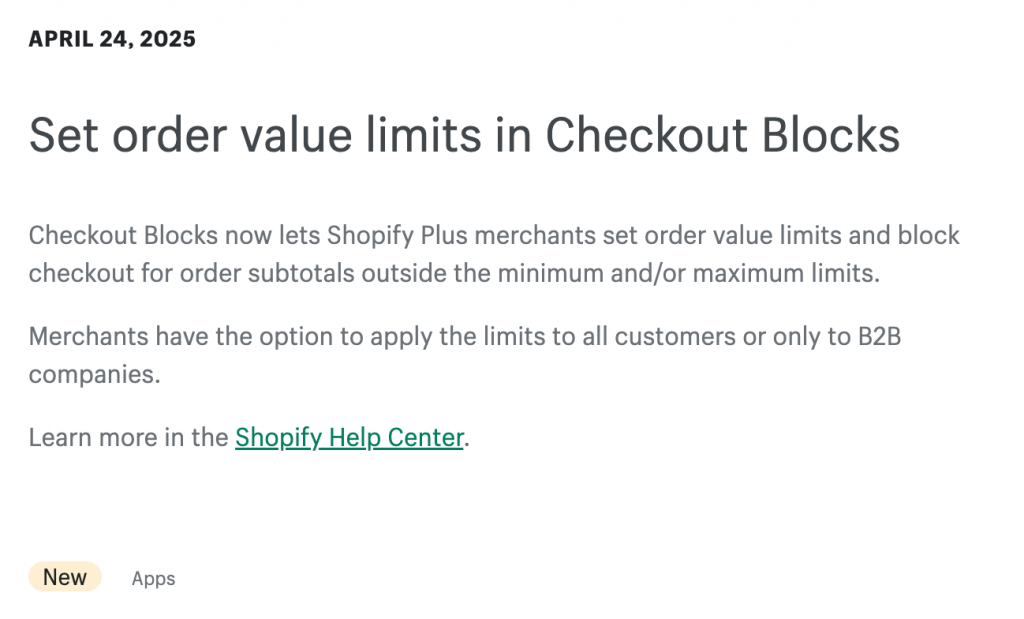
If someone’s cart total falls below your threshold, they won’t be able to complete the checkout. This is powered by Shopify Functions, which means the rule is enforced server-side and can’t be easily bypassed.
Limitations to know:
- Shopify Plus only
- You can only set one order value limit rule
- It applies to the subtotal, not the quantity per item
How to set it up:
- Go to Apps → Checkout Blocks in your Shopify admin
- Navigate to Functions → Create function
- Select Validation → Order limit validation
- Set your minimum (and optional maximum) subtotal
- Click Save, then Turn on
Install an Order Limits App (Best for Most Merchants)
For merchants not on Shopify Plus, installing an order limits app is the most practical route. There are dozens of options in the Shopify App Store, and many of them now use Shopify Functions for server-side enforcement – meaning customers can’t bypass the rules by editing URLs or going through a cart drawer.
What to look for in an MOQ app:
- Checkout validation (not just theme-level scripts) – look for language like “works with Checkout” or “Shopify Functions enforcement”
- Support for your cart surfaces – cart drawer, Buy Now buttons, and express checkout (Shop Pay, Google Pay) should all be covered
- Rule flexibility – can you set rules per product, per variant, per collection, or per customer tag?
- Clear messaging – customers should see helpful error messages that tell them exactly what to fix
Post-Checkout Automation with Shopify Flow (Soft Enforcement)
If you want a low-tech fallback, Shopify Flow lets you automatically cancel orders that don’t meet a minimum order value after they’re placed.
Set up a Flow workflow that checks the order total and triggers a cancellation (with a refund) if it falls below your threshold. You can also send the customer an automated email explaining what happened.
When this makes sense:
- You want a simple safety net without installing extra apps
- Your MOQ is about the order value, not the quantity per item
- You’re okay with the customer placing the order first, then being notified
When it doesn’t work:
- You need customers to be blocked before completing checkout
- You’re selling limited-stock items where a cancelled order creates inventory issues
- Customer experience is a priority (cancellations feel bad)
Shopify Scripts Are Going Away – What Plus Merchants Need to Know
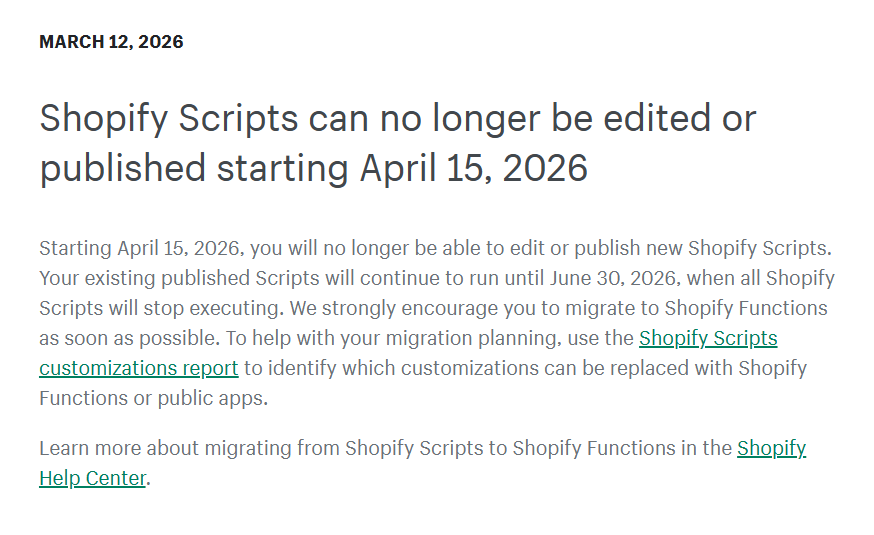
If your Shopify Plus store currently uses Shopify Scripts to enforce order rules, time is running out.
Here’s the timeline:
- April 15, 2026: You can no longer edit or publish new Scripts
- June 30, 2026: All Scripts stop executing
After June 30, any MOQ rules built on Scripts will simply stop working. Shopify’s recommended replacement is Shopify Functions – either through a public app (available on any plan) or a custom app (Shopify Plus only).
If you haven’t started migrating yet, now is the time.
One App That Can Cover It All
You’ve set up your store, your products are live, and orders are coming in. But somewhere along the way, things start going wrong. A reseller bulk-buys your entire stock in one order. A customer places the same order repeatedly to abuse a promotion. Someone checks out with just one unit of a product you only want to sell in packs of 6. By the time you notice, the damage is done.
These aren’t just one-off annoyances. Bulk buyers wipe out stock before real customers get a chance. Repeated purchase abuse eats into your margins. And if your MOQ rules live only in your theme, any savvy shopper can bypass them entirely – through a cart drawer, a Buy Now button, or a direct URL. You set up the rules, but they’re not actually working.
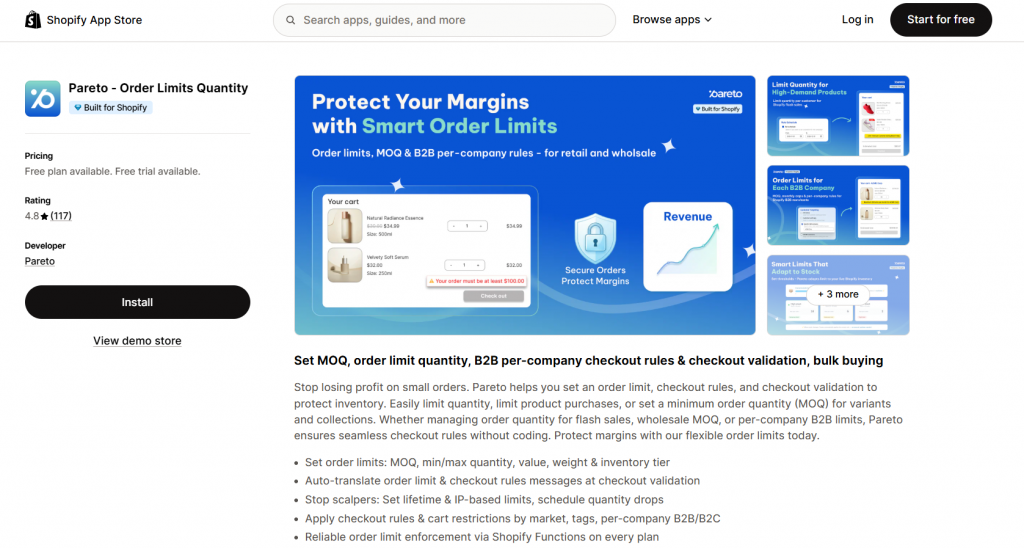
The solution? Pareto – Order Limits Quantity closes all those gaps in one place – no coding required.
Pareto enforces rules directly at checkout using strict checkout validation. That means limits are applied at the server level, not just on the front end. Customers can’t slip past them by editing URLs or jumping straight to express checkout.
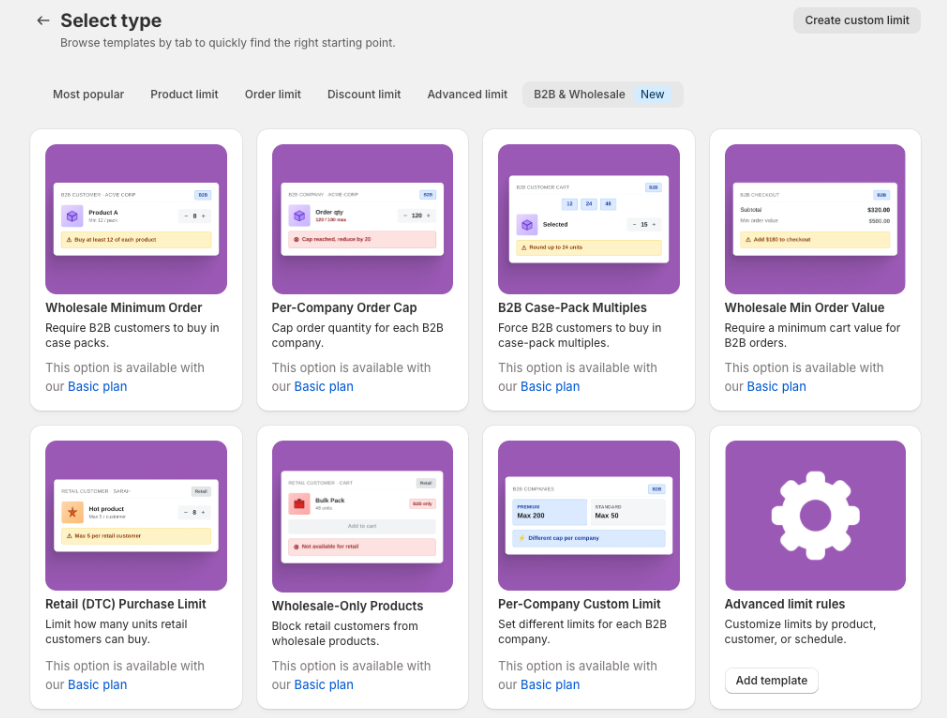
Here’s what you can control with Pareto:
- Minimum and maximum order quantity per product, variant, or collection
- Order value and weight limits – useful when the Shopify MOQ by quantity isn’t enough
- Lifetime order limits – restrict how many times a single customer can purchase a product
- Scheduled limit changes – set rules to activate or expire at specific dates automatically
- Customer segmentation – apply different rules by market, customer tag, or B2B vs B2C groups
Two features stand out for merchants managing tight inventory: the low stock counter creates urgency on the product page, and the customizable checkout messages tell customers exactly what they need to do to proceed – with auto-translation support if you’re selling across multiple markets.
The bottom line: if you want one app that handles Shopify MOQ, prevents abuse, and works across every checkout surface without touching a single line of code, Pareto is worth a close look.
Shopify Minimum Order Quantity FAQs
Does Shopify have a built-in MOQ feature?
Sort of. Features like B2B Quantity Rules and Checkout Blocks Order Value Limits are available on all paid plans. More advanced controls – like unlimited catalogs and full checkout customization – are Shopify Plus only. If those basics don’t cover your needs, a third-party app is the next step.
Can I set MOQ per product or per variant?
Yes – most apps support both. Shopify’s native B2B quantity rules work at the variant level. That means a customer must meet the minimum for each variant separately, not across your whole order.
Can customers bypass my MOQ rules?
If you only use theme-level scripts, yes – they can be bypassed. Checkout validation powered by Shopify Functions is server-side and much harder to get around.
What’s the cheapest way to add MOQ to Shopify?
Several apps offer free plans. Just verify that the free tier includes checkout validation, not just front-end messaging.
Will MOQ work with Shop Pay and other express checkout buttons?
Only if your enforcement method specifically supports express checkout flows. Check the app documentation before installing – not all apps cover these surfaces on free tiers.
I’m on Shopify Plus and use Scripts for MOQ. What should I do?
Start migrating to Shopify Functions before June 30, 2026, when Scripts stop executing. Shopify’s migration documentation outlines the path. Public apps using Functions are available on any plan; custom apps with Functions require Plus.
Can I set a minimum order value instead of a quantity?
Yes. Non-Plus merchants can use an MOQ app like Pareto Order Limit that supports a minimum cart value, or try the shipping rate workaround described earlier in this guide.
Final Words
Shopify MOQ isn’t a single switch – it’s a set of tools that work differently depending on your plan, your business model, and how strictly you need rules enforced.
Here’s the quick recap:
- Shopify Plus + B2B: Use native Catalog Quantity Rules for variant-level MOQ
- Shopify Plus + order value: Use Checkout Blocks Order Value Limits
- Any plan: Install an order limits app that uses Shopify Functions for checkout enforcement
- Lightweight UX hint: Add a Liquid snippet to the product page (not a substitute for real enforcement)
- Post-order fallback: Set up a Shopify Flow cancellation workflow
- Soft workaround: Hide shipping options for orders below your threshold (note: doesn’t fully block checkout).
One last thing worth repeating: whatever method you choose, test it thoroughly before going live. Rules that work on one surface and not another create a frustrating experience – and can lead to orders that slip through your rules entirely. If you’re unsure where to start, installing a well-reviewed order limits app like Pareto is the safest bet for most stores.