
Introducing Pareto’s New Banner & Popup Widgets
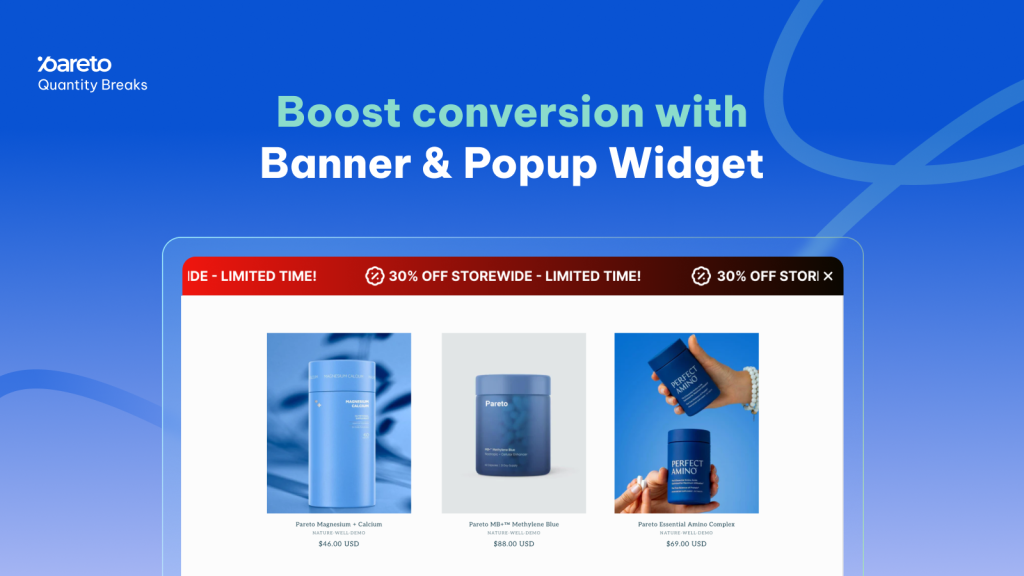
When promotions are easy to spot and simple to understand, shoppers make decisions faster. At Pareto AOV, we know that even the best discount can’t convert if a customer doesn’t see it.
That’s why we are thrilled to announce our latest feature update for Pareto Quantity Breaks & Bundles: the Banner & Popup Widgets. These tools aren’t just about adding “more” to your store- they are designed to make your existing offers clear, visible, and timely throughout the entire shopping journey.
The Banner Widget: Capture Attention Instantly
The Banner Widget allows you to place a clear, customizable promo message at the top of your store. It ensures shoppers know exactly what deals are available before they even start scrolling.
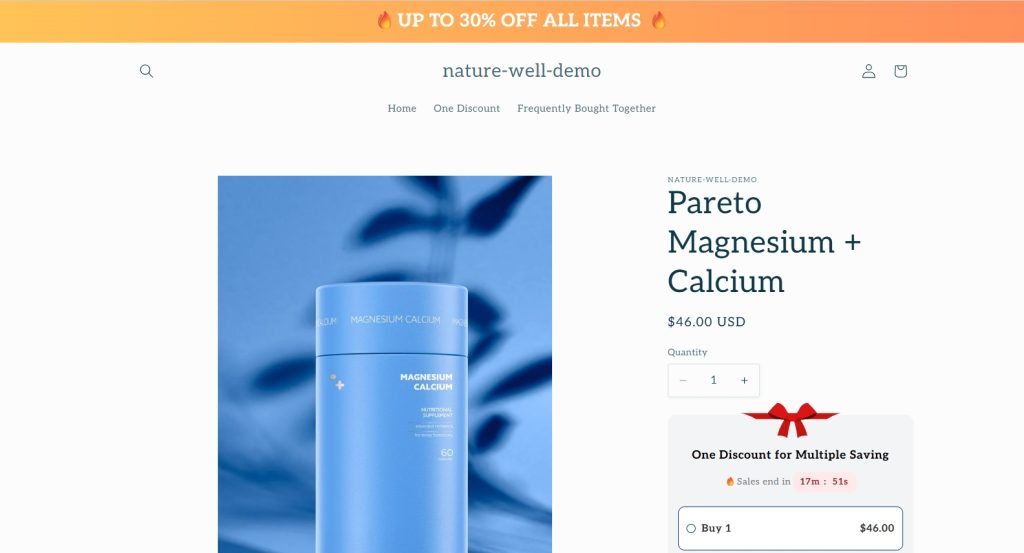
What makes it powerful?
- Dynamic Variables: Use placeholders like
%mnq(min quantity) or%mxd(max discount) to automatically pull data from your active campaigns. - Three Display Modes: Choose from a Simple Banner, a Running Line (scrolling text), or Multiple Rotating Banners to showcase several offers at once.
- Smart Placement: Display it site-wide, on the Home page only, or target specific Collection and Product pages.
- Full Design Control: From gradient backgrounds to custom icons and typography, you can match the banner perfectly to your brand’s aesthetic.
Pro Tip: Use the Sticky Bar setting to keep your offer visible even as customers scroll down to explore your products.
👉 Learn how to set up Banner Widget
The Popup Widget: Reinforce the Urgency
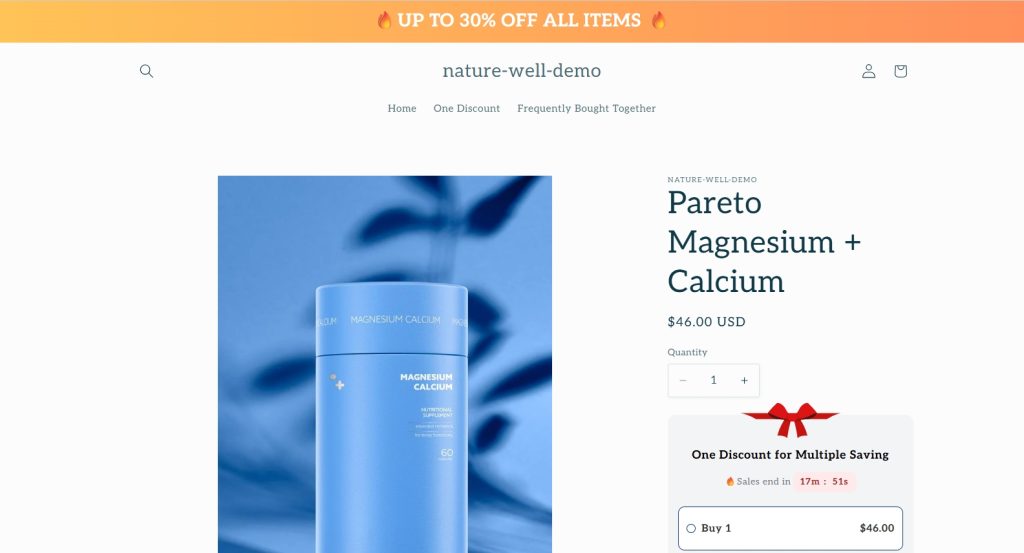
While the banner catches the eye, the Popup Widget seals the deal. It displays a promotional pop-up directly on the storefront to reinforce your offers at the most impactful moment.
By combining both widgets, you create a “double-tap” of visibility that guides customers through the checkout process with total confidence.
How to Get Started
Setting up your new widgets is simple and takes less than 2 minutes.
- Navigate: From your Shopify admin, go to Apps › P: Quantity Breaks & Bundles.
- Enable: Click Advanced settings in the left menu and open the Banner Widget or Popup Widget tab.
- Customize: Choose your campaign, set your colors, and adjust your call-to-action (CTA) buttons.
- Go Live: Toggle the “Turn on” button and save.
Note: Ensure your selected campaign is live for the widgets to appear on your storefront!
👉 Learn how to set up Popup Widget
💡 Best Practices for Higher Conversions
To get the most out of these new features, our team recommends:
- Keep it Concise: Keep titles under 50 characters for maximum impact.
- Contrast is Key: Use gradient backgrounds to make the banner “pop” against your site’s header.
- Mobile First: Always check the Preview panel to ensure your text size looks great on mobile devices.
- Clear CTAs: Use an action-oriented button like “Claim Now” to guide the user to the next step.
We’re Here to Help!
Whether you need help deciding which widget fits your store best or want us to review your current setup, the Pareto AOV Team is ready to assist.